

Feeling overwhelmed by constant emails, newsletters, and notifications? Email anxiety happens when your inbox is overloaded and priorities are unclear. This guide helps you unsubscribe, organize, and regain control of your email—reducing stress and interruptions, so you can focus on what truly matters.,
What’s new
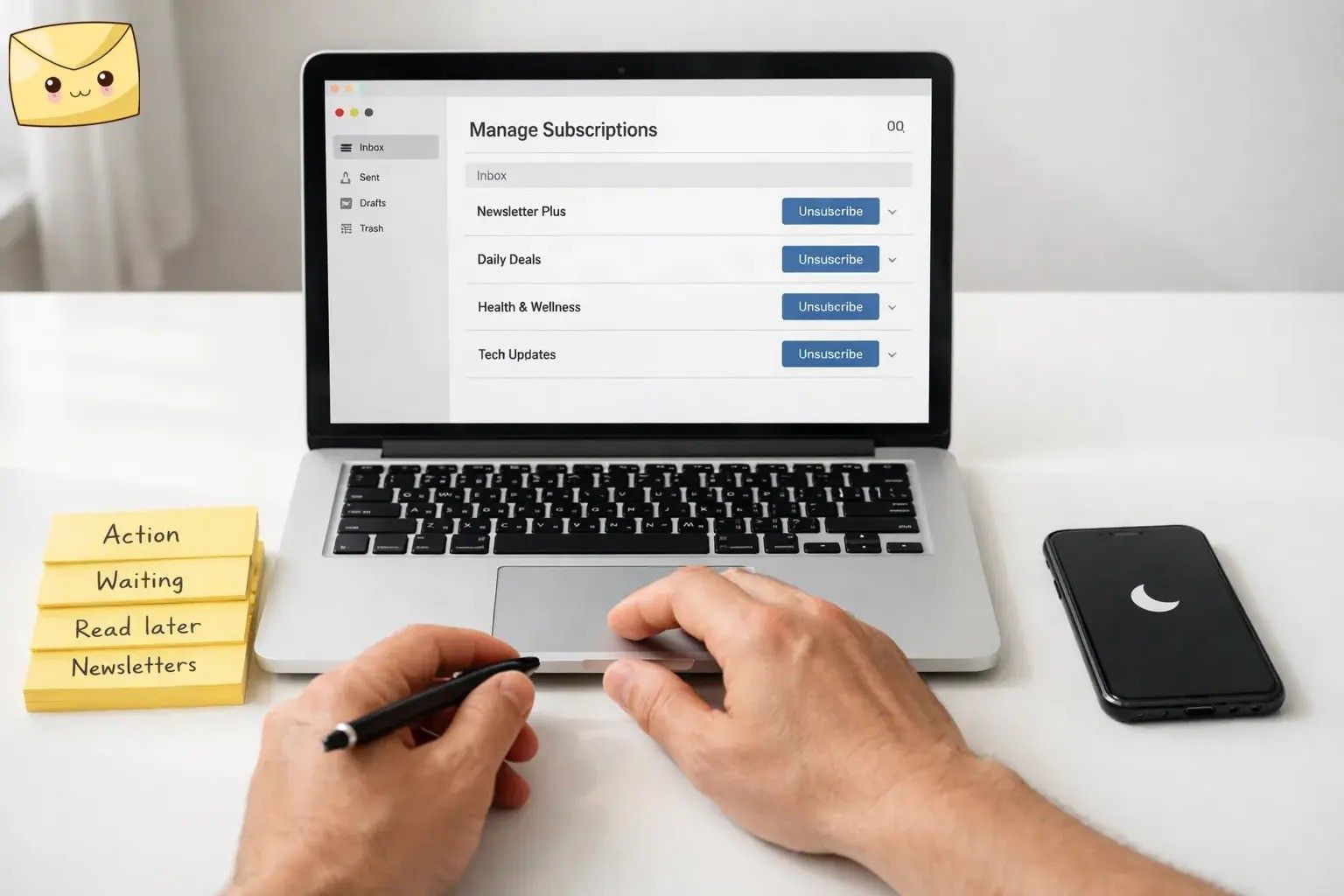
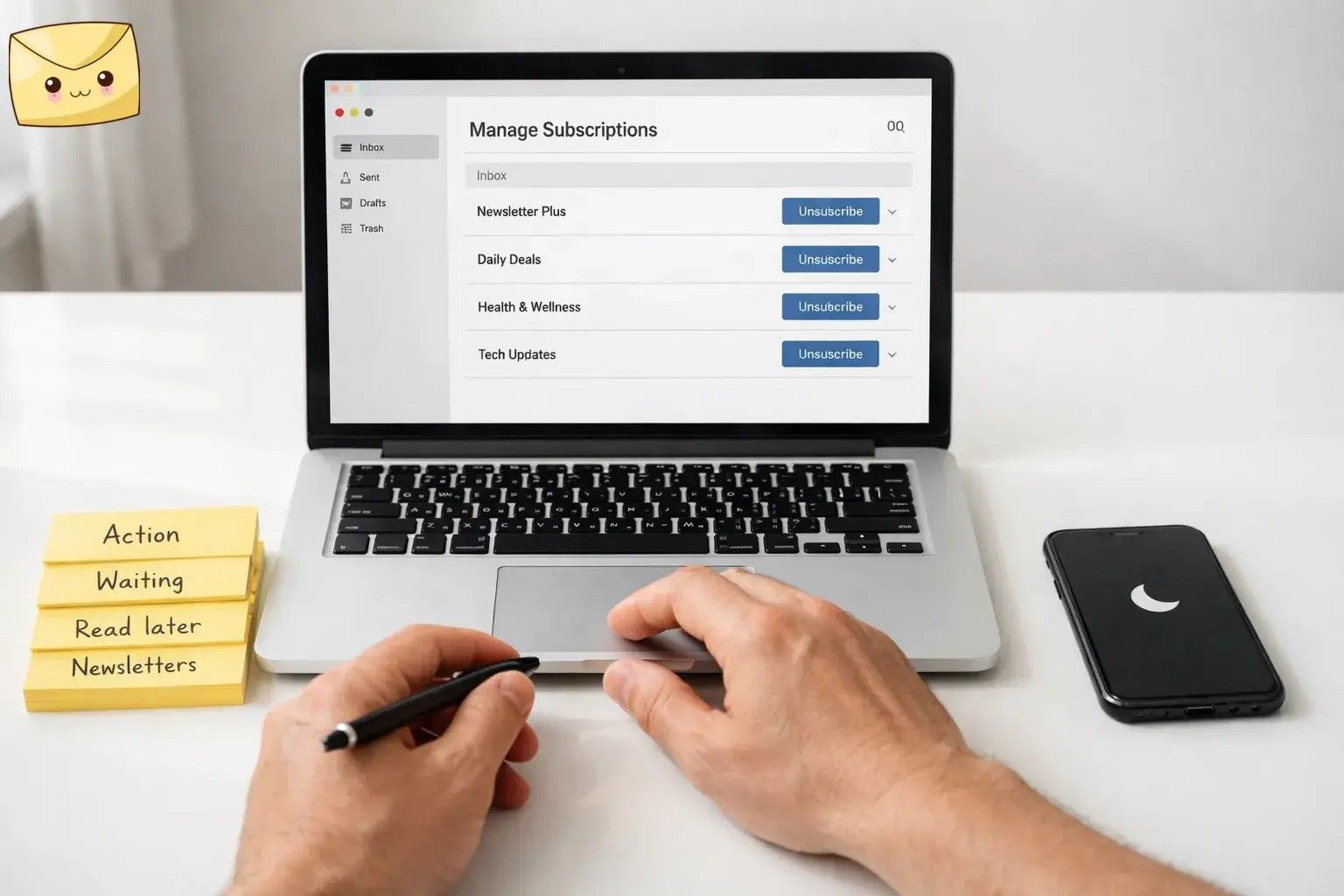
New in Gmail: Google introduced Gmail’s “Manage subscriptions” view (July 2025), which groups subscription senders and lets you unsubscribe in one click from a single screen.
Key takeaways
- Unsubscribe from what you don’t want (safely).
- Route the newsletters you keep out of your main inbox.
- Set a VIP rule so important senders stand out.
- Mute alerts and choose when you check email.
- Create four folders/labels: Action, Waiting, Read Later, Newsletters.
- If a message looks suspicious, don’t click links (including “unsubscribe” links): report as spam/phishing and delete.
- After a legitimate unsubscribe, it’s normal to see a couple stragglers right after you opt out; guidelines expect bulk unsubscribes to be honored within about 48 hours.
- A quick weekly “Inbox reset” helps keep anxiety from creeping back.
Tools: This uses built-in Gmail/Outlook/Apple Mail features, with optional help from an email unsubscribing tool like Leave Me Alone.
Before you start
- Prerequisites: You can sign in to your email on the web (recommended) or in your app, and you’re allowed to create folders/rules. If this is a work inbox, check your IT policy before connecting third-party tools.
- Tools/ingredients: Your email account (Gmail, Outlook, Yahoo, iCloud, etc.). Optional: Gmail’s “Manage subscriptions” screen (if available) or Leave Me Alone for bulk unsubscribing and newsletter digests.
- Time: One focused session to set up, plus a quick weekly reset.
- Cost: Free with built-in mail features; optional paid tools exist if you want bulk actions and extra automation.
- Safety notes: If a message looks suspicious, don’t click links (including “unsubscribe” links). Use your mail client’s spam/phishing reporting tools and delete the message.
- Privacy notes: If you connect a third-party inbox tool, read its permissions and privacy policy first. For example, Leave Me Alone describes the permissions it requests and what data it stores for unsubscribes and digests.
- Well-being note: This is general productivity guidance, not medical advice. If anxiety feels intense or is interfering with daily life, consider professional support.
If you’re overwhelmed right now: do Step 4 (unsubscribe sweep) and Step 9 (turn off alerts) first. Everything else can wait.
Step-by-step: unsubscribe, organize, and reduce email anxiety
Turn your inbox into a low-stress workspace (for this session)
- Turn on Do Not Disturb / Focus on your phone and computer.
- Open your email in one window (preferably on desktop) and close other inbox tabs.
- Keep a plain note open for “random thoughts” so you don’t leave the inbox to chase them.
Done when: notifications are quiet and your email is the only inbox you can see.
Create four folders/labels (and nothing else for now)
- Create: Action, Waiting, Read Later, Newsletters.
- Gmail: left sidebar → scroll to “Labels” → create new label.
- Outlook: folder pane → new folder.
- Apple Mail: Mailbox → new mailbox.
What these mean (keep it simple): Action = needs a next step from you; Waiting = you’re waiting on someone else; Read Later = useful info, not urgent; Newsletters = subscriptions you read on your schedule.
Done when: you can move any email into each of the four folders/labels.
Define “important” with a VIP rule
- Write down your VIP senders (manager, key clients, family, kids’ school, bank alerts).
- Create a rule/filter: From VIP → keep in Inbox + star/flag/mark as priority (whatever your app supports).
- Add exceptions so VIP mail never gets routed into Newsletters or Read Later by mistake.
Done when: VIP emails stand out visually (star/flag/priority) and stay in your main inbox.
Do a subscription sweep (unsubscribe from emails you don’t want)
- Start with the senders you see most often (high volume = high stress).
- If you use Gmail and see it: open the menu (top-left) → Manage subscriptions → review frequent senders → click Unsubscribe next to anything you don’t want.
- If you don’t see that view: open a newsletter → look near the sender name for a built-in unsubscribe option; otherwise scroll to the footer and use the unsubscribe link (only if you trust the sender).
- If you want one dashboard across accounts: Leave Me Alone lists subscription emails in one place and lets you unsubscribe from marketing emails with a click.
Done when: the senders you don’t want have been unsubscribed (or you’ve submitted unsubscribe requests for them).
Quarantine the newsletters you keep (so they don’t hit your main inbox)
- Pick the subscription senders you want to keep.
- Create a rule/filter: From = those senders → move/apply label Newsletters and skip Inbox (archive).
- Optional: If you use Leave Me Alone, you can bundle kept newsletters into “Rollups” (digests) that arrive on a daily or weekly schedule.
Done when: new newsletters land in Newsletters (or a digest), not your main inbox.
Stop “no-reply” notifications from posing as emergencies
- Search your inbox for: no-reply and notification.
- For each sender you don’t need in real time: either unsubscribe (if it’s marketing) or create a rule to route it to Read Later.
- Keep true time-sensitive alerts (security, banking) on the VIP list instead.
Done when: automated updates no longer sit in your main inbox.
Empty the visible pile: triage what’s already in your Inbox
- Start at the top. Skim sender/subject first; only open messages when you need details.
- Move each message into one of: Action, Waiting, Read Later, Newsletters, or Archive.
- If an email is clearly useless: delete it.
Done when: your Inbox contains only real-person threads and truly time-sensitive items.
Process “Action” with one rule: decide, capture, file
- If you can reply right away: reply, then archive.
- If it needs work: create a task/calendar reminder with a due date, then archive the email.
- If you’re waiting on someone: reply, then move the thread to Waiting.
- If you feel emotionally activated: write a draft, save it, and close the message. Re-read later.
Done when: every email you opened ends up archived, Waiting, or tied to a concrete next step.
Turn off email alerts (then choose your check-in rhythm)
- iPhone/iPad: Settings → Notifications → Mail → turn off alerts (or restrict them to VIP senders).
- Android: Settings → Notifications → Gmail/Outlook → disable or reduce alerts.
- Desktop: disable “new mail” pop-ups and sounds inside your email app.
- Decide when you’ll check email (set times beats constant grazing).
Done when: you’re no longer pulled back into email by banners, badges, or sounds.
Reduce decision fatigue with a tiny reply library
- Create a draft email titled Replies (copy/paste) and store a few lines you reuse often.
- Examples to paste:
- “Thanks — got it. I’ll confirm by [date].”
- “Can you clarify the deadline and the desired outcome?”
- “I’m heads-down today. I’ll reply when I’m back at my desk.”
- If you use classic Outlook for Windows: you can save reusable text blocks with Quick Parts (Insert → Quick Parts).
Done when: you can answer common emails without rewriting from scratch.
Set up a maintenance loop (so anxiety doesn’t creep back)
- Add a recurring calendar reminder named Inbox reset.
- During the reset: skim Newsletters/Read Later, archive what’s no longer relevant, and unsubscribe from anything new that you don’t want.
- Optional guardrail: tools like Leave Me Alone offer “Inbox Shield” features that only allow trusted senders into your inbox (everything else gets screened). For long-term guidance, see our tips for maintaining a clutter-free inbox.
Done when: you have a repeating reminder and a clear place for new subscriptions to go (not the Inbox).
Why this works
- Less input: unsubscribing and quarantining newsletters reduces the number of “decisions” your brain has to make.
- Less uncertainty: VIP rules define what matters, so you stop scanning everything “just in case.”
- Less interruption: turning off alerts breaks the stress loop that keeps email anxiety alive.
Troubleshooting
Troubleshooting table — 8 common fixes
| Symptom | Likely cause | Fix |
|---|---|---|
| You unsubscribed, but emails keep coming. | You unsubscribed from one list but the sender has multiple lists; or it’s a delay. | Unsubscribe again (from another message), then create a filter to route that sender to Newsletters or Spam if it continues. |
| You don’t see “Manage subscriptions” in Gmail. | It may not be available on your account yet, or you’re using a different Gmail interface. | Try Gmail on the web, update the app, or use manual unsubscribes + filters as a fallback. |
| The “Unsubscribe” option doesn’t appear near the sender name. | The sender didn’t implement a compatible unsubscribe method, or your mail client isn’t showing it. | Use the footer unsubscribe link (only if trusted), or route the sender to Newsletters and read it on your schedule. |
| Newsletters still show in Inbox after you made a rule. | The rule doesn’t “skip Inbox,” or it’s too narrow, or another rule overrides it. | Edit the rule and make sure it both applies the label/folder and skips Inbox (archives). |
| Important mail got filed away with newsletters. | Your newsletter rule is too broad (caught a person or a work system email). | Add that sender to your VIP rule and add an exception to the newsletter filter. |
| Your Action folder is becoming a second overwhelming inbox. | Everything “might need action someday” got dumped there. | Move “maybe later” items to Read Later. Keep Action only for items with a specific next step you can name. |
| You feel worse after opening email because the tone is stressful. | You’re replying while activated. | Draft, save, close. Come back when you’re calmer, or ask for clarification instead of guessing. |
| You can’t connect an unsubscribe tool to your inbox. | Work account restrictions or security settings. | Stick to built-in unsubscribe + filters, or ask IT whether connecting tools is allowed. |
Variations
- Minimal version: Use only Action + Newsletters. Everything else gets archived. (Great if folders stress you out.)
- Work-policy-safe version: Use only built-in unsubscribe buttons, filters/rules, and a weekly reset. No third-party tools.
- Newsletter-digest version: Keep newsletters out of Inbox and read them in one sitting from a folder—or use a digest feature (like Rollups) so newsletters arrive as a single bundle.
- High-anxiety “tiny start” version: First do only: unsubscribe sweep + turn off notifications. Add folders and rules on a calmer day.
Keep it calm long-term (make-ahead, storage, scaling)
- Make-ahead: Save one “VIP” filter and one “Newsletters” filter first. These two rules do most of the work.
- Storage: Prefer Archive over Delete when you might need receipts, confirmations, or reference details later. You can always search for them.
- Scaling (multiple inboxes): If you manage several email accounts, consider using a tool that shows subscription emails across accounts in one place—Leave Me Alone says you can connect multiple accounts and view subscription emails together.
- Scaling (privacy check): If you use digest/rollup features, read how the tool handles email content and retention before enabling it.
Frequently Asked Questions
Is “email anxiety” actually a thing?
Yes. If email consistently triggers dread, avoidance, or racing thoughts, treat it like a real stress signal and build a system that reduces triggers (volume, uncertainty, and constant alerts).
Do I need to aim for “inbox zero”?
No. Aim for an inbox you can scan calmly, plus a clear place to put action items and newsletters. A steady system beats a perfect inbox.
Why do some emails have an “Unsubscribe” button and others don’t?
It depends on the sender and your email app. If there’s no button, look for a trusted footer unsubscribe link—or route that sender out of your inbox with a filter.
How long should I wait after unsubscribing?
Give it a short buffer. For bulk mail, Gmail and Yahoo guidelines expect unsubscribe requests to be honored within about 48 hours. If emails keep coming after a couple days, unsubscribe again (you might be on multiple lists) or block/filter the sender.
Is it safe to click “unsubscribe” in every email?
Use unsubscribe for legitimate newsletters you recognize. For suspicious messages, don’t click any links—report as spam/phishing and delete.
What if I need newsletters for work but they stress me out?
Route them to a Newsletters folder (or a digest) so they stop interrupting you. Read them on your schedule, not when they arrive.
What’s the simplest folder setup that still works?
Two folders can be enough: Action (needs you) and Newsletters (information). Archive everything else.
What if my company won’t let me connect third-party inbox tools?
Use built-in unsubscribe options, filters/rules, and notification settings. You can still get most of the benefits without connecting anything.
Quick checklist
- Turned on Focus/Do Not Disturb before touching email
- Created folders/labels: Action, Waiting, Read Later, Newsletters
- Made a VIP rule so important senders stay in Inbox
- Unsubscribed from senders I don’t want anymore
- Routed newsletters I keep into Newsletters (not Inbox)
- Routed noisy notifications into Read Later (not Inbox)
- Triage complete: Inbox only contains people + time-sensitive items
- Action processing rule in place: decide → capture next step → archive
- Turned off email alerts on phone and desktop
- Saved a small reply library (draft or template)
- Scheduled a recurring “Inbox reset” reminder
About the author
Alexis Dollé is an Email & Growth Expert and Head of Growth at Leave Me Alone. This guide includes optional tool examples, but the core workflow works with built-in email features.
Disclosure: I work at Leave Me Alone. This guide includes tool examples and free, built-in alternatives.
