

By Alexis Dollé: Email & Growth Expert | Head of Growth at Leave Me Alone
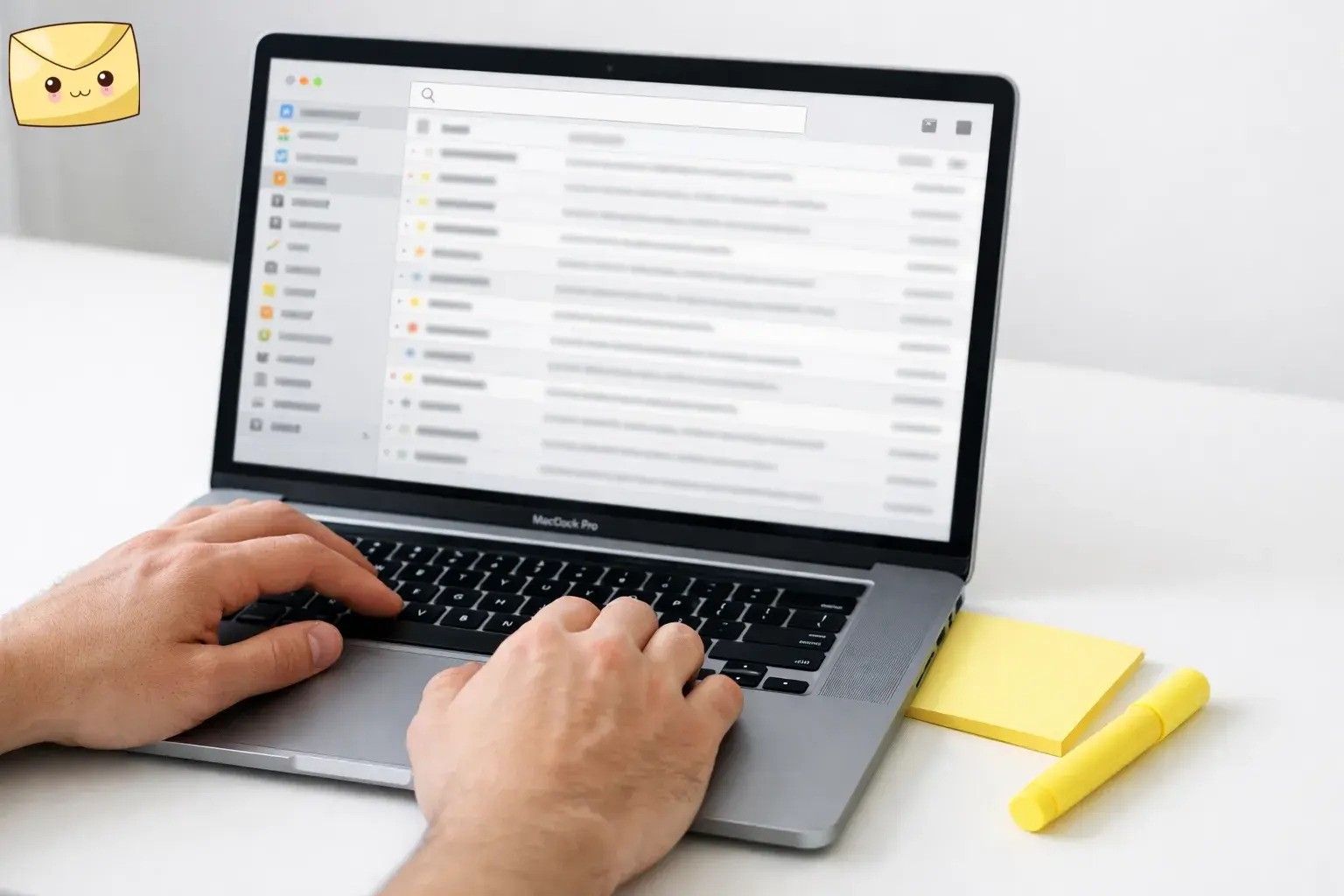
If you use Gmail on a Mac, managing your inbox through browser tabs can quickly become frustrating. Notifications get buried, switching between accounts slows you down, and productivity suffers. A dedicated Gmail app for Mac can solve these problems by giving you faster search, better notifications, keyboard shortcuts, and smarter inbox organization.
In this guide, we reviewed the best Gmail apps for Mac in 2026, including Gmail-native clients, multi-account email apps, and tools that help reduce inbox clutter. Whether you want a powerful Gmail-focused experience or a unified inbox for multiple accounts, these apps can help you manage email faster and keep your inbox under control.
What’s new
Google says it will remove support for Gmailify and POP-based “Check mail from other accounts” in Gmail (new users by Q1 2026; existing users later in 2026).
Key takeaways
- Google says it will remove support for Gmailify and POP-based “Check mail from other accounts” in Gmail (new users by Q1 2026; existing users later in 2026).[1]
- If you were using Gmail as a “one inbox” hub for other addresses, a Mac app that can truly manage multiple accounts (or forwarding) becomes the more reliable long-term workflow.
- Gmail API apps usually feel more like Gmail (labels, categories, search); IMAP apps usually handle many providers, but Gmail-specific features can feel different or partially missing.
- If you want Gmail labels, categories, and search to behave like Gmail, start with a Gmail API app like Mimestream.
- If you mainly need multiple accounts in one place, start with an IMAP-first client like Apple Mail, Spark, Outlook, or Thunderbird.
- “Smart” features (push notifications, AI, collaboration) often require some server-side processing—read privacy/security docs and check what Google permissions an app requests.If your inbox is noisy, pair any mail client with an unsubscribe tool (like Leave Me Alone).
Quick shortcut: if you want Gmail labels, categories, and search to behave like Gmail, start with a Gmail API app like Mimestream. If you mainly need multiple accounts in one place, start with an IMAP-first client like Apple Mail, Spark, Outlook, or Thunderbird. If your inbox is noisy, pair any client with an unsubscribe tool.
Quick comparison: Best Gmail apps for Mac
| Pick | Best for | Why people choose it | Typical cost (CAN CHANGE) |
|---|---|---|---|
| Mimestream (GMAIL-ONLY) | Gmail power users who want labels, categories, and search to behave like Gmail. | Gmail API + native Mac feel; privacy-forward architecture (no intermediary sync service). | ~$49.99/year (subscription). |
| Notion Mail (GMAIL-ONLY) | People who want a “Views” approach to email (filters that match how you work). | Custom inbox views + AI-assisted organization; tight Notion-style editor. | Free to start. |
| Superhuman (PAID) | High-volume inboxes where speed is worth real money. | Premium workflow + AI features; structured onboarding and team features. | From $30/month (Starter). |
| Apple Mail | Mac-first users who want a solid, local-feeling client with minimal fuss. | Built in, works with Gmail and other accounts; great macOS integration. | Included with macOS. |
| Spark (CLOUD FEATURES) | People who want smart triage + cross-device sync. | Smart Inbox + collaboration features; strong productivity feature set. | Free + paid tiers (Plus $10/mo, Pro $20/mo). |
| Outlook for Mac (FREE – ADS) | Calendar-heavy users and anyone mixing Gmail + Outlook habits. | Free for personal Gmail; Focused Inbox + solid calendar experience. | Free (ad-supported) for personal accounts; paid option for ad-free. |
| Thunderbird (OPEN-SOURCE) | Tinkerers who want maximum control without paying. | Free and open-source; Unified view to combine multiple inboxes. | Free. |
| Mailbird for Mac | People who want a modern unified inbox (and may also use Windows). | Simple unified inbox; paid tier for unlimited accounts. | Free tier + Premium (from ~$4/user/month on yearly plan). |
| Leave Me Alone (CLEANUP TOOL) | Anyone drowning in newsletters and “subscription creep.” | Unsubscribe + rollups + inbox shielding that works alongside any mail app. | Free to try (10 unsubscribes) + paid options (incl. a $19 7-day pass). |
How we picked
We prioritized apps that (1) make Gmail manageable on macOS (labels/threads/search, keyboard speed, notifications), (2) have a clear privacy model (local vs. cloud processing), (3) are realistic for multi-account life, and (4) have straightforward pricing or at least a clear “how it’s billed.” For key points like pricing, privacy posture, and platform requirements, we cite the vendor documentation linked in the Sources section.
Bucket 1: Gmail-first Mac apps (closest to Gmail’s “native” behavior)
Mimestream GMAIL API
Best for: Gmail power users who rely on labels, inbox categories, and Gmail-grade search—without living in Chrome.
- Gmail-native features: built on the Gmail API (not generic IMAP), so it can better reflect Gmail concepts like labels/categories and Gmail-backed search.
- Privacy-forward architecture: designed to connect directly to Gmail without an intermediary sync service; data/tokens stay on your device.
- Mac feel: purpose-built for macOS, so it’s fast to triage with native UI patterns and shortcuts.
Biggest drawback: it’s Gmail-focused (not a universal client), and it’s subscription-only.
Watch out: it requires macOS 12 (Monterey) or newer—easy to miss if you’re on an older work Mac.
Price: 14-day free trial; $49.99/year for individuals (can change).
Notion Mail GMAIL-ONLY
Best for: people who want to organize Gmail like a workspace—custom “Views” (filters) that match projects, clients, hiring, receipts, etc.
- Views-first inbox: split your inbox into topic-based views and work from a focused queue, not “everything.”
- AI-assisted organization: it can auto-label/sort based on the kinds of emails you care about (you define what matters).
- Security posture callouts: Notion positions Mail as built with data security in mind (and states it doesn’t train on your data).
Biggest drawback: it integrates with Google/Gmail accounts only.
Watch out: no unified inbox across multiple accounts—Notion explicitly says it doesn’t offer a unified inbox view for all accounts in one place.
Price: free to get started (can change).
Superhuman PREMIUM
Best for: high-volume email where shaving minutes off every hour is worth paying for.
- Structured, “everything included” tiers: plan features are packaged clearly (Starter vs Business vs Enterprise).
- Built-in AI features: the product is designed around AI assistance for tasks like drafting, summarizing, editing, and search.
- Team workflow features: plan tiers include collaboration features (like shared conversations and team comments).
Biggest drawback: cost—this is one of the priciest mainstream email apps.
Watch out: Superhuman processes “Email Content Data” to provide the service, and discloses some data to third-party AI providers for AI features (it says providers can’t train models on your data).
Price: Starter is $30/month ($300/year); Business is $40/month (can change).
Bucket 2: Multi-account email apps that work well with Gmail (IMAP-first)
Apple Mail BUILT-IN
Best for: anyone who wants a dependable Mac app for Gmail (plus iCloud/Exchange/other accounts) with minimal setup drama.
- No extra vendor: it’s already on your Mac, and it’s usually the simplest “just let me read email” choice.
- Great macOS integration: consistent notifications, system sharing, and a familiar Apple UI.
- Good default for multiple accounts: easy to add Gmail alongside other providers.
Biggest drawback: Gmail power features won’t always feel 1:1 with the Gmail web UI (especially if you live inside labels/categories and Gmail search tricks).
Watch out: if your workflow depends on Gmail categories (Primary/Social/Promotions), test your triage flow before committing—many IMAP clients won’t mirror that experience perfectly.
Price: included with macOS (effort level: low).
Spark SMART TRIAGE
Best for: people who want an opinionated inbox that helps them process email faster across devices.
- Smart Inbox sorting: Spark groups incoming email so “real people” are easier to process than newsletters/notifications.
- Solid productivity toolkit: built around focused processing (prioritization + workflow helpers) rather than just “another inbox.”
- Collaboration options: Spark has advanced features like shared drafts/comments and delegation for team workflows.
Biggest drawback: if you want a strictly local-only client, Spark’s server-side features may be a deal-breaker.
Watch out: Spark states it uses server-side processing for push notifications and certain advanced features; for example, it syncs/encrypts parts of message data to deliver notifications and supports server-side processing for collaboration and “send later.”
Price: Free tier + paid tiers (Plus $10/month, Pro $20/month; can change).
Outlook for Mac FREE (ADS)
Best for: calendar-driven users who like Outlook’s way of working—and want Gmail inside that same system.
- Free for personal Gmail: Microsoft says Outlook for Mac is free to use with personal Gmail (and other) accounts.
- Calendar + inbox together: useful if your day is scheduled and email is “work arriving.”
- Focused Inbox workflow: Outlook’s built-in prioritization can reduce visible noise for some people.
Biggest drawback: the free version is ad-supported, and the app can feel heavier than minimalist clients.
Watch out: Microsoft notes that adding Google/IMAP accounts in Outlook for Mac can sync with Microsoft Cloud by default (you can disable that during setup).
Price: free (ad-supported) for personal accounts; paid Microsoft 365 options exist for ad-free (can change).
Thunderbird FREE + OPEN-SOURCE
Best for: people who want a capable multi-account client they can customize—and don’t want another subscription.
- Free and open-source: a long-running project with a strong “you are not the product” stance.
- Unified inbox view: Thunderbird supports a Unified folder view that combines inboxes across accounts into one set of folders.
- Customizable workflow: add-ons and settings can make it feel tailored (once you invest the time).
Biggest drawback: it can take more setup time to feel “perfect,” and the UI won’t be as Mac-polished as the most native-first apps.
Watch out: Gmail access relies on OAuth; Thunderbird notes you may need cookies enabled (and sometimes exceptions) to complete Google authorization smoothly.
Price: free (effort level: medium).
Mailbird for Mac UNIFIED INBOX
Best for: people who want a straightforward “all accounts in one place” inbox—and may also use Windows.
- Clear tiering: a free tier for basics and a Premium tier aimed at professionals.
- Unified Inbox focus: Mailbird’s Unified Inbox is a core feature for managing multiple accounts in one view.
- Good for mixed ecosystems: if you bounce between platforms, a cross-platform client can reduce friction.
Biggest drawback: the best multi-account experience is tied to the paid tier.
Watch out: before paying, confirm the exact macOS feature set you need—desktop mail apps often differ slightly across platforms and versions.
Price: Free tier (1 email account) + Premium (from $4/user/month on a yearly plan; can change).
Bucket 3: Gmail management & cleanup (works alongside any Mac mail app)
Leave Me Alone UNSUBSCRIBE TOOL
Best for: people who want fewer subscription emails (and more control over who can reach them) without changing how they write/reply.
- One place to unsubscribe: find subscription emails and unsubscribe in bulk so your Gmail app choice matters less.
- “Control the input” features: tools like rollups (digests) and inbox shielding help you keep a productive inbox long-term.
- Clear permission model: the security page details exactly what Gmail scopes are requested and what they’re used for.
Biggest drawback: it’s not an email client—think of it as “inbox hygiene” you run alongside Gmail on Mac.
Watch out: understand the Gmail permissions. For Gmail/Workspace, Leave Me Alone lists restricted OAuth scopes like gmail.modify and gmail.settings.basic (used for identifying subscription emails and optionally creating filters/moving messages; it states it does not delete mail).
Price: unsubscribe from 10 emails for free; a $19 seven-day pass is listed, plus other paid options (pricing can change).
What can change (check this before you commit)
Timelines: Google’s Gmailify/POP deprecation is staged (new users first; existing users later). If your current workflow depends on Gmail fetching mail from other providers, plan your migration now.
Pricing & plan names: email apps change pricing more often than you’d think (especially around AI features). Always confirm current pricing on the vendor page right before buying.
Cloud processing: “smart” features (push notifications, AI, collaboration) often require some server-side processing. If that’s a concern, read the app’s privacy/security docs and choose accordingly.
Best picks by scenario
I want Gmail to behave like Gmail (labels/categories/search)
Pick: Mimestream.
I want a customizable, Notion-style “Views” inbox (Gmail-only)
Pick: Notion Mail.
I have multiple accounts (Gmail + others) and I want one place to work
Pick: Spark (smart triage) or Outlook for Mac (calendar-driven) or Thunderbird (free, configurable).
I want “good enough” with the least setup and no new subscriptions
Pick: Apple Mail.
I process a ton of email and I’ll pay to go faster
Pick: Superhuman.
My real problem is newsletters and subscription creep
Pick: Leave Me Alone (then use any Mac mail app you like).
Gmail Alternatives for Managing Multiple Email Accounts on Mac
If your main goal is managing several email accounts in one place, a multi-account email client can be more useful than a Gmail-only app. Tools like Apple Mail, Spark, Outlook, and Thunderbird allow you to combine Gmail with other providers such as iCloud, Outlook, and work email accounts in one unified inbox.
This approach is especially useful as Gmail phases out Gmailify and POP-based account fetching, making desktop email clients a more reliable way to manage multiple accounts.
Frequently Asked Questions
Is there an official Gmail desktop app for Mac?
Not as a standalone first-party Mac app. Most “Gmail apps for Mac” are either third-party email clients that connect to Gmail, or desktop wrappers that make Gmail feel like an app.
What’s better for Gmail on Mac: Gmail API apps or IMAP apps?
Gmail API apps usually feel more like Gmail (labels, categories, search), but can be more Gmail-specific. IMAP apps usually handle many providers, but Gmail-specific features can feel different or partially missing.
Will these apps work with Google Workspace (work/school) accounts?
Many do, but some organizations restrict third-party access or require admin approval. If you’re on a managed account, check with IT before switching clients.
Why do some apps ask to use cloud services to sync my email?
Features like push notifications, team collaboration, and AI often require server-side processing. If you prefer local-only, pick a client that doesn’t rely on a sync backend for core features.
What happens when Gmailify and “Check mail from other accounts (POP)” go away?
If you used Gmail to continuously pull mail from other providers into your Gmail inbox, you’ll need a replacement approach: forwarding from the other provider, using the Gmail mobile app for IMAP-connected accounts, or using a desktop email client that can handle multiple accounts directly.
Do I lose my old imported emails in Gmail if a feature is deprecated?
Usually, deprecations affect ongoing syncing/behavior going forward rather than deleting your existing mailbox history. Still, it’s smart to keep a backup/export plan if those emails matter.
How do I stop newsletters without deleting them forever?
Two approaches work well: (1) unsubscribe from what you don’t want, and (2) route the newsletters you do want into a digest/rollup or a separate label/folder so your main inbox stays focused.
Is Outlook for Mac really free for Gmail?
Microsoft offers a free version for personal accounts (including Gmail). Some premium benefits (like an ad-free experience) can require a subscription depending on your account type and preferences.
If I care about privacy, what should I check before connecting Gmail to an app?
Check (1) whether the app stores your mail locally or syncs through its own servers, (2) what exact Google permissions it requests, and (3) how AI features handle your data (training vs. no training, retention, etc.)
Disclosure
I work at Leave Me Alone (an unsubscribe + inbox control tool). It’s included below because it’s directly relevant to Gmail management, but the goal here is a fair, practical comparison.
Feature, privacy, and pricing notes are based on the vendor pages and support documentation linked in Sources. Always confirm current details before you commit.
