

Written by digital inbox management specialists at Leave Me Alone. Updated for Gmail and mobile tools in 2026.
Constant notifications, endless emails, and late-night scrolling make it hard to truly relax—even on vacation. A digital detox doesn’t mean disappearing from the internet completely. With a few simple settings and boundaries, you can reduce distractions, protect your sleep, and regain control of your time. This guide walks you through five practical steps to unplug from digital noise while keeping essential communication available.
What’s new
One practical way to start is with email: on July 8, 2025, Google announced a “Manage subscriptions” view in Gmail that puts subscription senders in one place and lets you unsubscribe with a click. Fewer promotional emails can mean fewer notifications and fewer reasons to pick up your phone.
Key takeaways
- Your detox can be “mostly boundaries + a few settings,” not willpower.
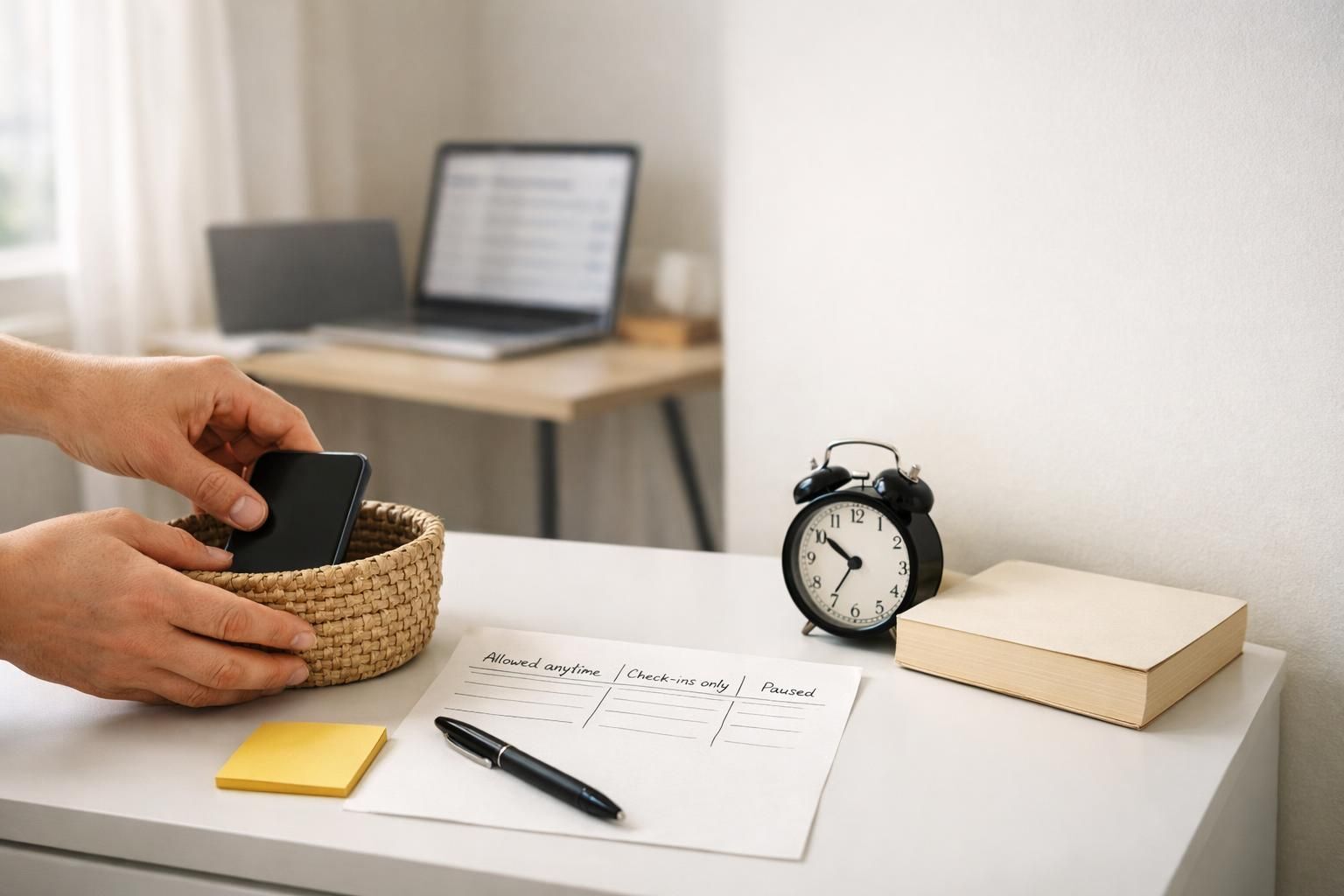
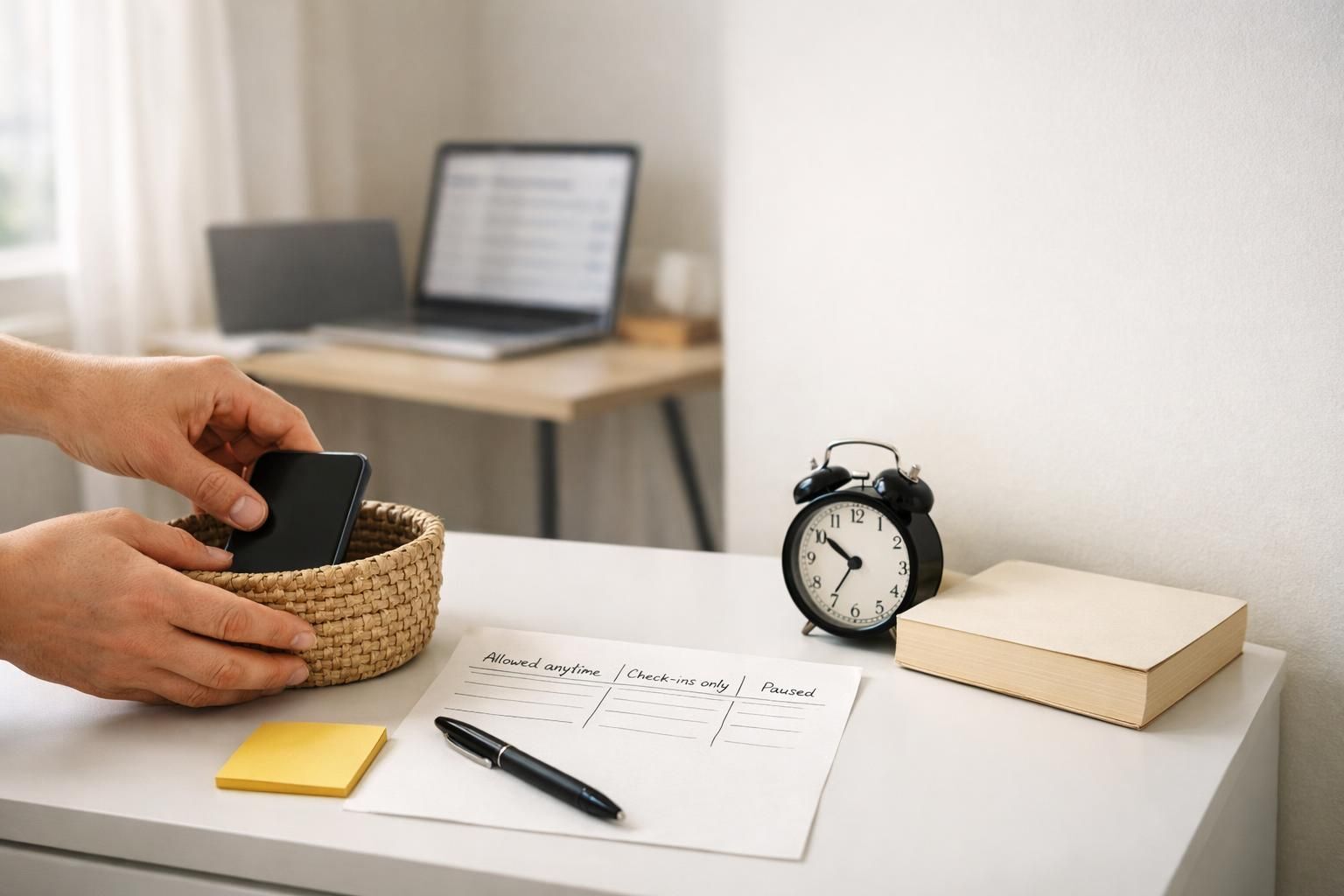
- Write simple rules on paper: Allowed anytime / Allowed only at check-ins / Paused.
- Set one “urgent only” channel (usually calls/texts) and tell key people.
- Quiet inbox triggers first: unsubscribe safely, then batch email into scheduled check-ins.
- Turn off nonessential notifications and use Focus/Do Not Disturb (or Android Focus mode).
- Add friction to time-sink apps with App Limits/Downtime (iPhone) or App timers/Bedtime mode (Android).
- Protect sleep with an evening screen curfew, and keep chargers out of the bedroom.
- Replace default scrolling with offline alternatives, then review and adjust what broke.
At a glance: the 5 steps
- Measure + choose boundaries. Capture your baseline and write rules you’ll actually follow.
- Create an urgent-only path. Decide how truly important people can reach you, and tell them.
- Quiet inbox triggers. Unsubscribe safely and turn email into scheduled check-ins.
- Remove pings + add friction. Turn off notifications, use Focus modes, and set app limits.
- Replace the scroll + review. Plan offline alternatives, run your first phone-light block, then adjust.
If you’re detoxing for a trip, do the setup once before you leave—then keep the phone for essentials (navigation, tickets, photos) instead of default scrolling.
Before you start
- Prerequisites: Access to your phone settings, your main email account(s), and a quick way for truly urgent people to reach you (usually calls/texts).
- Tools: Your phone (iPhone or Android), your email on web or mobile, and a piece of paper + pen (recommended) for your rules. Optional: an email cleanup tool like Leave Me Alone.
- Time: One setup session, plus a first phone-light block the same day (the sooner you test it, the sooner you can adjust what’s unrealistic).
- Cost: Free with built-in settings. Optional: Leave Me Alone lists a Seven Day Pass at $19 and a limited free start (unsubscribe from 10 emails) with no credit card required.
- Safety notes: If an email looks suspicious, avoid clicking the unsubscribe link inside the message—security experts warn these links can lead out of your mail app to risky pages; use built-in unsubscribe tools (when available) or mark as spam/block instead.
This guide is general information, not medical advice. If screen use is tied to severe anxiety, panic, or sleep problems you can’t resolve on your own, consider talking with a licensed clinician.
Detailed checklist: 11 do‑it‑now actions
Action 1: Capture your baseline (screen + inbox).
Open your phone’s built-in tracker (Screen Time on iPhone; Digital Wellbeing on Android) and write down what it says today: your daily average screen time and the apps you use most. Then open your email and search for unsubscribe to get a fast snapshot of how much “attention tax” your inbox is creating.
- Write your baseline on paper (so you don’t need your phone to remember it).
- Circle the top trigger moments (for example: waking up, between tasks, before bed).
Done when: You have a baseline note you can compare against later—without opening another app.
Action 2: Write your detox rules (so you stop negotiating with yourself).
Make three lists on paper: Allowed anytime, Allowed only at check-ins, and Paused. Keep the rules simple enough that you can follow them when you’re tired.
- Allowed anytime usually includes: calls/texts, maps, camera, music, transit, wallet.
- Paused usually includes: social apps, news apps, shopping, games, short-form video.
- Decide where the paper will live (tape it near your charger or desk).
Rule template (copy to paper):
- Allowed anytime: calls/texts, maps, camera, music
- Check-ins only: email, non-urgent messaging, work tools
- Paused: social, news, shopping, games, short-form video
Keep it realistic. If you break a rule twice in a day, adjust the rule—don’t argue with it.
Done when: You can point to your rules without opening your phone.
Action 3: Create an “urgent only” path—and tell people.
Pick one channel for urgent reach-outs (typically phone calls or one messaging app). Then tell the handful of people who might need you: “I’m checking messages at set times—call if it’s urgent.”
- Add key contacts to Favorites (or pin them) so you can find them fast.
- If this affects work: set a short status message (Slack/Teams) and an email auto-reply that states when you’ll respond.
- If you’re traveling: share your itinerary with the one person who’d need it.
Message template: “I’m doing a digital detox and checking messages at set times. If it’s urgent, please call.”
Done when: You can unplug without worrying you’ll miss something truly important.
Action 4: Quiet your inbox first (unsubscribe safely).
Inbox noise is a screen-time multiplier: a promo email becomes a notification, becomes a tap, becomes a scroll. Start your detox by removing the noisiest subscription senders.
If you use Gmail: Open Gmail, open the left navigation menu, and look for “Manage subscriptions”. It lists subscription senders and offers one-click unsubscribes from a single view (availability may vary by account).
If you want one dashboard across multiple inboxes: Leave Me Alone scans for subscription emails and lets you keep them, roll them into a digest (“Rollups”), or unsubscribe from lists after you connect your email accounts.
If you want to do it on your phone: Leave Me Alone offers an Android app for viewing mailing lists and unsubscribing on mobile (with an iOS app listed as “coming soon”).
Safety shortcut: If a sender looks sketchy, avoid clicking the unsubscribe link inside the message. Use your email client’s built-in unsubscribe option (when available), or mark as spam/block instead.
Done when: Your subscription sender list is shorter—and your next email check feels less “sticky.”
Action 5: Turn email into a scheduled task (not a reflex).
Turn off email notifications on your phone and remove the email app from your home screen so checking becomes a decision, not a twitch.
- In your phone’s notification settings, disable banners/lock-screen alerts for your email app(s).
- Disable badges for email (the unread count is a built-in itch).
- Put “Email check” on your calendar (or a paper schedule) so you don’t wonder when you’re allowed to look.
Done when: Email can’t interrupt you, and you can’t open it with a single casual tap.
Action 6: Shut off the notifications you don’t want to obey.
Open Settings → Notifications and turn off lock-screen/banners/sounds for nonessential apps (social, news, shopping, games). Keep real-time alerts only for things that truly need real-time attention.
- Turn off “breaking news” and “recommendations” alerts completely.
- Mute group chats that aren’t time-sensitive.
- Keep a short allowlist (calls/texts, calendar, navigation, authenticator).
Done when: Your lock screen looks boring again.
Action 7: Create a Focus mode for work and another for off-hours.
Use Focus/Do Not Disturb features to decide who and what can reach you during focus time—then automate it so you don’t rely on willpower.
On iPhone: Go to Settings → Focus, choose a Focus (Work/Personal/Sleep) and set which people and apps are allowed to notify you while it’s on.
To automate it, add a schedule so your Focus turns on at certain times, locations, or when you open specific apps.
On Android: Open Digital Wellbeing and use Focus mode to pause distracting apps during your work block; you can schedule Focus mode so it runs automatically.9
Done when: You can toggle Focus on in seconds—and the only interruptions you get are the ones you chose.
Action 8: Add one “hard boundary” for your biggest time sinks.
Soft intentions fail when you’re tired. Add friction using built-in screen-time controls so the easiest thing is also the healthiest thing.
On iPhone: In Settings → Screen Time, set App Limits for the apps/categories you overuse and schedule Downtime for periods you want apps and notifications blocked (with a small “Always Allowed” exception list for essentials).
On Android: In Digital Wellbeing, use App timers to set daily limits (apps pause when you hit the limit), and use Bedtime mode to quiet your phone for sleep by silencing notifications and shifting the screen toward grayscale.
Done when: Your highest-distraction apps are no longer “infinite” by default.
Action 9: Protect your sleep with an evening screen curfew.
Decide what time screens-off starts, then make it visible (sticky note, whiteboard, calendar reminder). Keep your evening environment low-stimulation so you actually feel like winding down.
Public health guidance suggests keeping light levels low before bedtime and avoiding computers and other backlit screens during that wind‑down period.
Blue-wavelength light can suppress melatonin, the hormone that helps regulate circadian rhythms—so if you do use a device at night, dim it and avoid bright screens close to bedtime whenever you can.
- Pick a screen-free wind-down activity: paper book, light stretching, shower, journaling.
- Lower the room lighting instead of staring into a bright screen.
Done when: You have a repeatable, low-screen bedtime routine you can follow even on a stressful day.
Action 10: Create a physical boundary (phone parking spot + out of the bedroom).
A digital detox works faster when your phone is out of sight. Choose a single “home base” spot for your phone when you’re not using it (a drawer, basket, shelf), and charge it there—not next to your bed.
- Move chargers out of the bedroom.
- If you use your phone as an alarm, switch to a standalone alarm clock (or a smart speaker you don’t scroll on).
- When you sit down to relax or focus, place the phone in the same home base spot every time.
Done when: Reaching for your phone takes an intentional walk, not a reflexive grab.
Action 11: Replace the scroll—then run your first detox block and review.
A detox fails when “no phone” turns into “nothing to do.” Plan replacements for boredom, stress, and idle time, then test your system.
- Make an offline menu of activities (relaxation + focus): walk, cook, read on paper, puzzle, workout, call a friend, clean one area, plan the week.
- Start your first block at a natural boundary (after a meeting, after dinner, after you get home) and put the phone in its parking spot.
- After the block, write down what broke (which app, which time, which feeling) and fix one lever (notification, limit, placement, or plan).
Done when: You’ve completed one real phone-light block and made one concrete adjustment based on what happened.
Why this works
This reset works because it reduces triggers (notifications and inbox noise), adds friction (limits, downtime, app pausing), and replaces default scrolling with planned offline options. You’re not trying to become a stronger person—you’re creating an environment where focus, relaxation, and digital balance are the easy choices.
Troubleshooting
| Symptom | Likely cause | Fix (do this now) |
|---|---|---|
| You keep unlocking your phone without meaning to. | Home screen + badges are acting like a cue. | Remove the most tempting apps from the home screen, disable badges, and place the phone in its parking spot when you sit down. |
| You “need” email constantly. | Push notifications + no clear response expectation. | Turn off email notifications, set an email auto-reply for slower response, and write your check-in windows on paper. |
| You’re missing important messages. | Your blocks are too strict, or you didn’t set an urgent path. | Add a small VIP list (family, childcare, boss/on-call contact) and allow only those through Focus/Do Not Disturb. |
| You feel more anxious when you unplug. | Your brain is used to constant input; silence feels like “something’s wrong.” | Start with shorter blocks, add a low-effort replacement (walk, shower, simple chores), and keep one urgent channel open. |
| You clean up subscriptions, but unwanted email still shows up. | Some senders ignore opt-outs, or the email is actually spam. | Stop engaging. Mark as spam, block the sender, and use your email provider’s built-in unsubscribe tools when available (avoid weird links in sketchy emails). |
| You fall into “just one more video” at night. | No bedtime boundary + the phone is within reach. | Schedule a nightly mode (Downtime/Bedtime), move chargers out of the bedroom, and pick a screen-free wind-down activity. |
| You can’t focus even with notifications off. | The distracting apps are still available and easy to open. | Pause them (Android Focus mode) or add App Limits/Downtime (iPhone Screen Time). Make opening them annoying. |
| You relapse on day two and feel like you failed. | You aimed for perfection instead of an adjustable system. | Do a quick review: what time, what trigger, what app? Change one lever (notification, limit, placement, or replacement) and run another block. |
Variations
- Inbox-first detox: Focus on unsubscribing, batching email checks, and cleaning notifications. Ideal if email is your main trigger.
- Weekend getaway detox (even at home): Keep your phone for navigation/photos only, leave it parked the rest of the time, and plan offline activities in advance.
- Workday focus reset: Use Focus/Focus mode during your core work hours, pause social/news apps, and keep one urgent channel open for real emergencies.
- Family or roommate plan: Set shared phone-parking spots during meals and create a simple house rule for nights (screens off in bedrooms).
Getaway prep and how to keep the benefits
Prep (before you unplug)
- Write your detox rules before you’re tired or stressed.
- Download anything you’ll want offline (maps, tickets, playlists) so you’re not forced back onto apps.
- Choose your offline replacements and put them where you’ll actually use them (book on couch, shoes by door, journal on nightstand).
Phone parking (where your phone goes)
- Create one dedicated phone home base spot (basket, drawer, shelf) and use it consistently.
- Charge outside the bedroom to protect sleep and reduce late-night scrolling.
Keep digital balance after the detox
- Keep the same structure and gradually widen your phone-light blocks.
- Turn your best boundary into a default (for many people: no phone in bed, and no email notifications).
- Do a short weekly review: what apps crept back, and what setting will you change this week?
Quick checklist
- I captured my baseline (screen + inbox snapshot).
- I wrote my detox rules: Allowed anytime / Check-ins only / Paused.
- I downloaded anything I’ll want offline (maps, tickets, playlists).
- I chose one urgent channel and told key people how to reach me.
- I unsubscribed from obvious unwanted mailing lists (using a safe method).
- Email notifications are off (no lock screen, no banners, no badges).
- I scheduled my email check-ins (so email is a task, not a reflex).
- Nonessential notifications are off across social/news/shopping apps.
- I set up a Focus mode (work + off-hours) and tested it.
- I added one hard boundary (app timer / limit / downtime / app pause).
- I set an evening screen curfew and picked a screen-free wind-down activity.
- My phone charges outside the bedroom.
- I created a physical phone parking spot and used it once today.
- I completed one phone-light block and wrote one adjustment for next time
Frequently Asked Questions
What counts as a digital detox if I still need my phone?
A digital detox can be partial. The practical version is: keep your phone for essentials (calls/texts, navigation, banking, tickets) and remove the high-friction, high-distraction behaviors (social, news, endless email checking).
Do I have to delete social media apps to make this work?
No. You can start by hiding them, logging out, turning off notifications, or pausing them during Focus time. If that still doesn’t work, deleting (temporarily) can be the cleanest reset.
Does Gmail really let you unsubscribe from subscriptions in one place?
Gmail has a “Manage subscriptions” view for some accounts that organizes subscription senders and makes unsubscribing faster. If you don’t see it yet, you can still unsubscribe from individual emails (or use a dedicated cleanup tool).
Is it safe to click unsubscribe on every email?
No. If the email seems suspicious, don’t interact with links in the message. Use your provider’s built-in unsubscribe tools (when available) or mark as spam/block the sender instead.
What if I need my phone for work (and for two-factor codes)?
Keep the authenticator and critical work apps in your Allowed anytime list, but silence everything else. Use a Work Focus/Focus mode so only specific coworkers or apps can reach you during work blocks.
How long should my digital detox last?
Long enough to notice patterns and make changes—then stop and keep the best boundaries. Many people do better with repeatable phone-light blocks than a dramatic “never again” plan.
How early should I stop using screens before bed?
Pick a screen curfew you can keep. If you want a simple starting point, keep lights low and avoid backlit screens during your wind‑down period before sleep. If you do use a device at night, dim it—blue-wavelength light can suppress melatonin.
How can Leave Me Alone fit into a digital detox?
It’s a fast way to remove inbox triggers: you connect your email accounts, review subscription senders, and choose to unsubscribe, keep, or roll up newsletters into a digest—so you check email less often and with less clutter.
Read About: A Do-It-Now Digital Detox to Reduce Screen Time
