

Written by digital productivity and email management specialists at Leave Me Alone. Updated with modern device and inbox management practices for 2026.
Digital distractions like notifications, emails, and constant app alerts can quietly break your focus and reduce productivity. The good news is you don’t need a complete digital detox to fix it.
This guide shows simple, practical steps to reduce distractions across your phone, computer, and inbox—so you can stay focused, manage your time better, and build healthier digital habits.
Turn off notifications, reduce inbox noise, and schedule focused work blocks to minimize distractions and improve concentration.
In about 45 minutes, you’ll set up a simple “focus shield” for your phone, computer, and inbox so you can work with more mental clarity, build better digital habits, and get real focus improvement from fewer interruptions.
What’s new
In July 2025, Google launched Gmail’s Manage subscriptions view, which lets you review subscription senders in one place and unsubscribe with one click.
Quick answer (do these first)
- Silence the pings: Turn on Focus/Do Not Disturb on your phone and desktop for a timed block.
- Reduce incoming noise: Unsubscribe/filter your top recurring email distractions (10 minutes).
- Replace checking with windows: Check email/messages at set times instead of “just real quick.”
If you have the time, follow the full 45-minute Focus Reset below.
Before you start
- Prerequisites: Your phone (iPhone or Android), your main computer (Mac or Windows), and access to your email account(s).
- Tools/ingredients: A timer (phone timer is fine), a notepad (paper or Notes), and a quiet place for one focused session.
- Time: 45–60 minutes to set up today, then ~5–10 minutes per week to maintain.
- Difficulty: Easy (mostly toggles and a 10-minute unsubscribe sprint).
- Cost range: $0 using built-in settings. Optional inbox cleanup: Leave Me Alone offers 10 unsubscribes for free (no card) and a $19 seven-day pass (pricing and availability can change).
- Safety notes: If you’re on-call or caregiving, add exceptions for key contacts and test your setup with a real call and alarm before you rely on it. Also, some Android users have reported Do Not Disturb behaving unexpectedly when enabled by voice command—turn it on from Settings/quick toggles instead.
- Not medical advice: If digital distraction is tied to anxiety, sleep issues, or attention challenges, consider talking with a qualified professional while you use these practical steps.
Step-by-step: the 45-minute Focus Reset
Pick one “finish line” for your next focus block (3 minutes).
- Write a one-sentence outcome: “By [time], I will [deliverable].”
- Open the exact file you’ll work in (doc, spreadsheet, code editor) and leave it on screen.
- Write your first tiny action at the top (example: “Draft headings,” “Reply to 3 client emails,” “Outline slide 1–3”).
Done when: You can read your finish line out loud in one sentence and your work file is already open.
Put two focus blocks on your calendar (5 minutes).
- Create two events (25–50 minutes each). Name them “Focus: [finish line].”
- Set the events to Busy so you’re less likely to accept meetings on top of them.
- Add a 5-minute buffer after each block labeled “Break (no phone).”
Done when: You can see two “Focus” events on your calendar (today or tomorrow).
Turn on Focus/Do Not Disturb on your phone—then move it out of reach (5 minutes).
- iPhone: Use Focus to allow only the people/apps you truly need during work time.
- Android: Use Digital Wellbeing’s Focus mode to pause distracting apps, or enable Do Not Disturb for your focus block.
- Set a clear end time (example: “for 50 minutes”).
- Put the phone in a drawer, bag, or another room. If you need the time, use a watch or a desk clock.
Done when: Your phone is silenced for a set duration and is not within arm’s reach.
Silence your computer notifications for the same window (3 minutes).
- Windows 11/10: Start a Focus session for your chosen duration (it can turn on Do Not Disturb and reduce distractions).
- Mac: Turn on Do Not Disturb (Focus) for the duration of your focus block using Control Center or System Settings.
- Close or quit the chat app you compulsively check (Slack/Teams/Discord) for this block.
Done when: You won’t see pop-ups on your desktop until your block ends.
Cut off browser distractions: notifications, extra tabs, and “just one more search” (7 minutes).
- In your browser settings, block websites from sending notifications (and remove any sites already allowed).
- Close every tab that isn’t needed for your finish line. Keep 3–7 tabs max open.
- Turn on full-screen mode or maximize your work window so you can’t see other tempting apps.
Done when: You have only task-related tabs open and no website notification prompts.
Clean your inbox distractions in 10 minutes (unsubscribe + batch).
Pick one option below and do it for exactly 10 minutes (set a timer).
Option A (Gmail): use “Manage subscriptions”
- In Gmail, open the main menu and look for Manage subscriptions (see our Gmail inbox cleanup guide).
- Unsubscribe from the top 10 senders you never want to see again.
- Keep 2–5 newsletters you genuinely read (and move them into a dedicated label/folder if you want).
- Gmail’s view is designed to list active subscriptions in one place and make unsubscribing a one-click action.
Option B (Any provider): use Leave Me Alone for bulk cleanup
- Create an account and connect your inbox in Leave Me Alone.
- Unsubscribe from anything you don’t want coming in during work hours (or try one of the dedicated unsubscribe apps).
- If you use Inbox Shield, enable the Unsubscribe Blocklist so senders you unsubscribe from stop reaching you even if an unsubscribe fails.
- If you want to keep some newsletters, put them into Rollups (a digest delivered on your schedule) instead of receiving them all day.
- Cost note: Leave Me Alone offers 10 free unsubscribes (no card) and a $19 seven-day pass; it also advertises a 14-day money-back guarantee.
Option C (Manual, works anywhere): “unsubscribe” search sprint
- Search your inbox for unsubscribe.
- Open each sender, unsubscribe, then archive/delete the thread — see our unsubscribe from all emails guide.
- For senders that won’t stop: create a filter to skip the inbox or send them to trash.
Done when: You have removed (or filtered) at least 10 recurring distractions and picked two daily email check windows (example: 11:30 a.m. and 4:30 p.m.).
Batch messages into check-in windows (5 minutes).
- Pick two “message windows” (example: 11:30 a.m. and 4:00 p.m.).
- Set a status message: “In focus. I’ll reply at 11:30.”
- Mute group chats and low-importance channels for your focus blocks.
- Choose a single urgent path (example: phone calls from Favorites only).
Done when: You can point to the next time you’ll check messages—and your apps won’t interrupt you before then.
Add friction to your top 2 time-sink apps/sites (5 minutes).
- Move the app icons off your first home screen (put them on the last page, inside a folder).
- Sign out of the app/site on your phone and desktop (force a login step).
- Set an app timer/app limit (start small: 10–20 minutes per day) and keep the passcode out of reach (write it on paper and put it in a drawer).
- If you prefer desktop blocking: install a website blocker and set it to run only during your calendar focus blocks.
Done when: It takes you at least two extra steps to reach your biggest distraction.
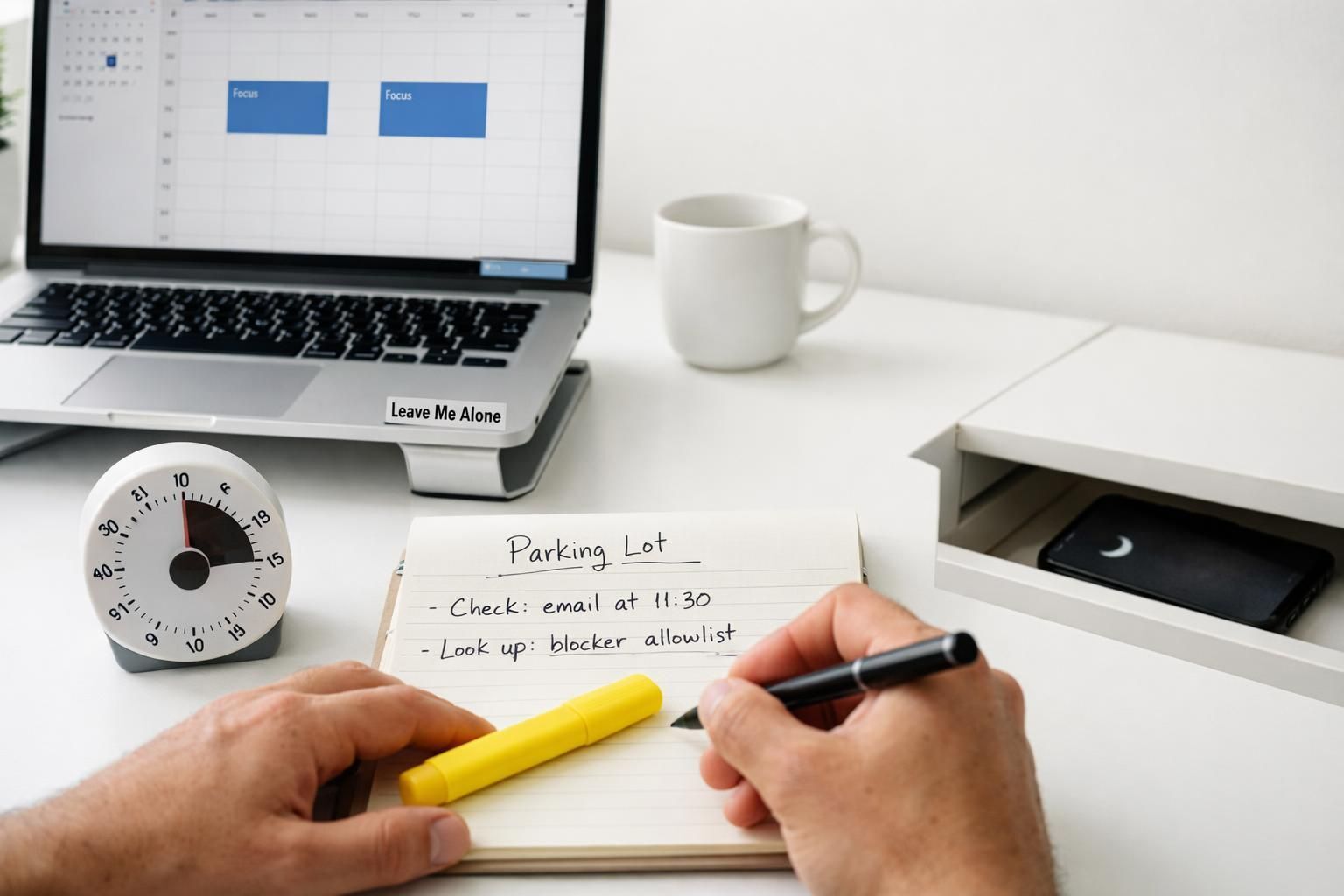
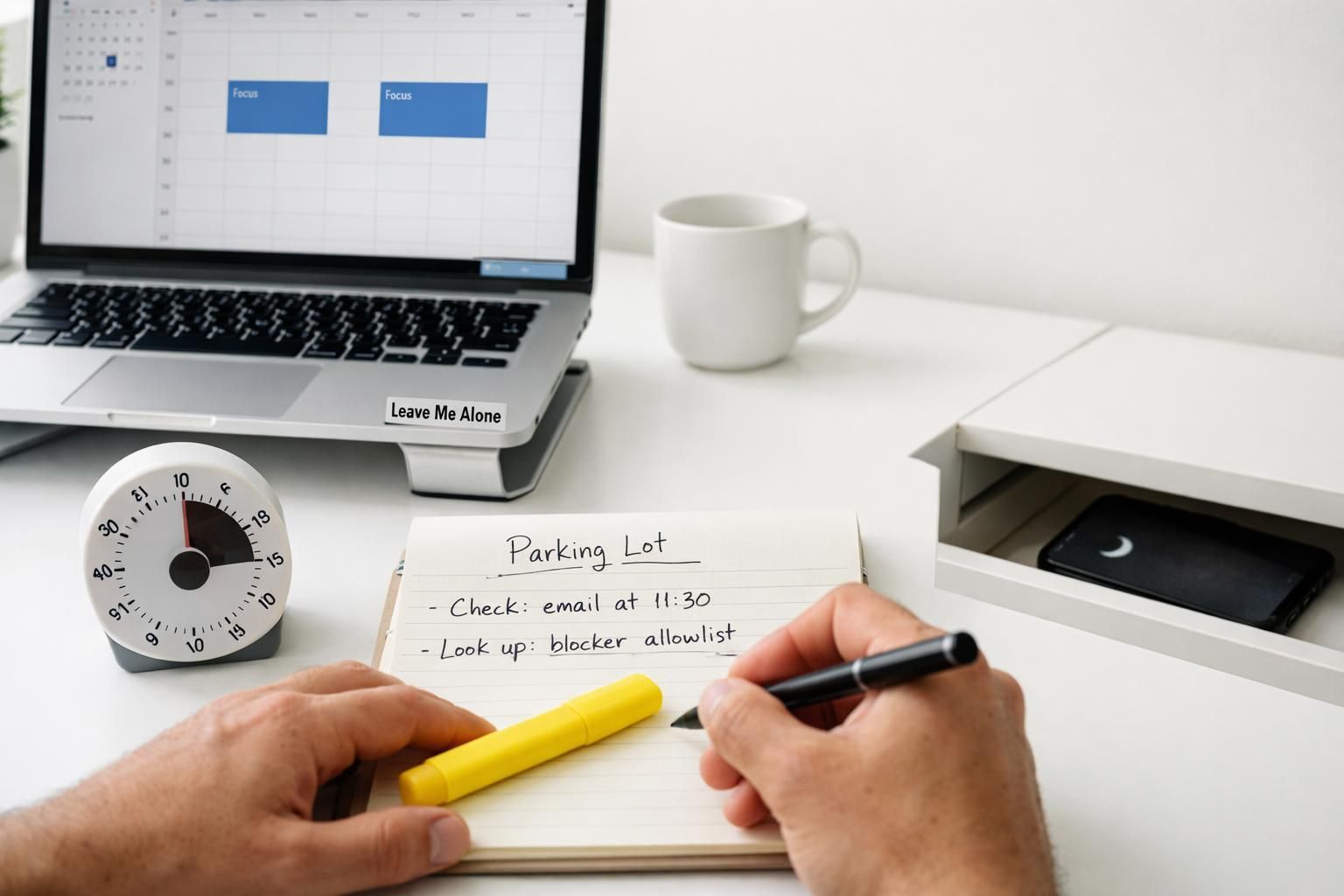
Create a “Distraction Parking Lot” note (2 minutes).
- Open a note titled Parking Lot.
- During focus time, whenever you feel the urge to check something, write one line: “Check: ____” then return to work.
- Review it only during your break or message window.
Done when: The note is open (or pinned) and you’ve written at least one entry.
Run one test focus sprint right now (25 minutes).
- Set a 25-minute timer.
- Work only on your finish line. If you get interrupted, write it in the Parking Lot and continue.
- When the timer ends, stand up for 2 minutes (water, stretch, look out a window), then decide whether to run a second sprint.
Done when: You complete one uninterrupted sprint and can name exactly what helped (example: “phone in another room”).
Schedule a weekly 10-minute reset (2 minutes now; 10 minutes later).
- Create a repeating calendar event: “Weekly Digital Detox Reset”.
- Checklist for that weekly reset:
- Unsubscribe from 5 new senders (or filter them).
- Turn off notifications you re-enabled “temporarily.”
- Set next week’s two focus blocks.
Done when: The event exists, repeats, and has the checklist in the description.
What can change
Menu names and locations vary by device and updates. If you can’t find a setting, use the search bar inside your Settings app and type the feature name (example: “Focus,” “Do Not Disturb,” “Notifications,” “Screen Time,” “Digital Wellbeing”).
Why this works
Digital distractions don’t just steal the seconds you spend looking—they often steal the time it takes to get back into deep focus. A Washington Post report on phone-checking and cognition quotes attention researcher Gloria Mark saying it can take more than 25 minutes to regain focus after a workplace interruption.
This reset works because it changes your environment (fewer pings), adds friction (harder to “just check”), and replaces reactive checking with planned windows (email/messages at set times). That combination builds calmer digital habits—without relying on willpower.
Key takeaways for avoiding digital distractions
- Protect the block: Focus/Do Not Disturb on phone + desktop during your focus window.
- Make the inbox quieter: Unsubscribe/filter recurring senders (or use a digest instead of real-time delivery).
- Check on purpose: Two daily windows beats constant background checking.
- Add friction: Move time-sink apps, sign out, and set limits so “opening it” isn’t effortless.
Troubleshooting
| Symptom | Likely cause | Fix (do this now) |
|---|---|---|
| You still pick up your phone every few minutes. | Phone is visible/reachable; checking is on autopilot. | Move it to another room and use a physical timer. If that’s impossible, place it face down across the room and stand up to reach it. |
| You missed an alarm or an important call. | Do Not Disturb has no exceptions (or exceptions didn’t apply). | Add exceptions for alarms/priority contacts, then test with a real alarm + test call. On Android, enable Do Not Disturb from Settings/quick toggles (not voice command) if you’ve seen it ignore exceptions. |
| You can’t find Gmail’s “Manage subscriptions.” | It hasn’t rolled out to your account/country yet, or you’re using a different mail app. | Use the manual “unsubscribe” search sprint (Step 6, Option C) or use an inbox cleanup tool to unsubscribe in bulk. |
| You unsubscribed, but emails still arrive. | Sender didn’t honor the request yet, or you unsubscribed from one list but not another. | Create a filter to skip the inbox (or send to trash). If you use Leave Me Alone, enable Unsubscribe Blocklist so those senders stop reaching you even if unsubscribe fails. |
| A website blocker blocks something you need for work. | Your block list is too broad. | Add the specific work pages to an allowlist, or run the blocker only during your calendar focus events. |
| Your “breaks” turn into 30-minute scrolling. | No break plan; your default is the easiest dopamine hit. | Create a 3-item break menu (water, walk, stretch) and do one item before you touch any screen. |
| Your team expects instant replies. | Unclear expectations and no backchannel for urgent issues. | Set a status (“In focus; back at 11:30”) and define one urgent path (call/text from specific people only). |
| You stick with it for 3 days, then slip. | Too many changes at once; no weekly reset. | Keep only two non-negotiables for two weeks: (1) phone out of reach during focus blocks, (2) email checked at set times. |
Variations
- The “Inbox-First” variation: Do Step 6 first, then Step 3. If email is your main trigger, reducing incoming volume can make every other step easier.
- The “Phone-First” variation: Start with Step 3 + Step 8 only. If your phone is the problem, you’ll feel relief fast with fewer apps available and fewer notifications.
- The “On-Call” variation: Keep Focus/Do Not Disturb on, but allow calls from specific contacts and repeat callers. Put all other apps into Focus mode/paused mode during work blocks.
- The “Student/Study” variation: Use 50-minute blocks with 10-minute breaks, and keep your phone physically outside the room during the 50.
Make-ahead / maintenance / scaling
Make-ahead (set it once)
- Create a repeating weekday Focus schedule (example: 9:00–11:00 a.m.).
- Save a “Focus browser window” with only your core work tabs (pin them).
- Make one email rule: newsletters you keep → label/folder “Read Later.”
Maintenance (5–10 minutes/week)
- Unsubscribe/filter 5 new senders.
- Review your top 3 distracting apps/sites and tighten limits by one notch.
- Pick next week’s two most important focus blocks and calendar them.
Scaling (teams & households)
- Teams: Agree on two “quiet hours” where messages aren’t expected to be instant, plus one urgent channel.
- Households: Create a charging station outside bedrooms; phones sleep there.
- Shared devices: Add a separate browser profile for work (no social logins).
If email is your biggest distraction: A dedicated unsubscribe tool like Leave Me Alone can make the “unsubscribe sprint” faster, especially if you manage multiple inboxes. See our AI email cleanup guide.
Quick checklist
- Write one finish line for the next focus block (one sentence).
- Schedule two focus blocks on your calendar (25–50 minutes each).
- Turn on Focus/Do Not Disturb on your phone and move it out of reach.
- Silence desktop notifications for the same window.
- Disable browser notifications and close extra tabs (keep 3–7 tabs max).
- Unsubscribe/filter 10 email senders (set a 10-minute timer).
- Pick two daily email windows and two daily message windows.
- Add friction to your top 2 distracting apps/sites (move, log out, set limits).
- Open a “Distraction Parking Lot” note and use it during focus time.
- Run one 25-minute test focus sprint today.
- Schedule a weekly 10-minute reset.
Frequently Asked Questions
What counts as a digital distraction?
Anything that pulls you away from your chosen task: notifications, email checks, messaging apps, browser tab-hopping, and “quick” scroll breaks that turn into long sessions.
Do I need a full digital detox to get focused?
No. Most people get a big lift from a few targeted changes: silence notifications during focus blocks, reduce inbox noise, and set two message windows per day.
Should I delete social media apps?
Only if that’s your simplest path. A gentler first move is to add friction: move the apps off your home screen, sign out, and set tight limits during weekdays.
How do I stop checking email all day without falling behind?
Batch email into two windows, keep one urgent channel for true emergencies, and unsubscribe/filter aggressively so your inbox contains fewer “fake urgent” messages.
What if Focus/Do Not Disturb makes me miss something important?
Set exceptions for key contacts and alarms, then test with a real call and alarm before you rely on it. If you’re on-call, keep one emergency route open.
What’s the fastest way to unsubscribe from lots of emails?
Start with your biggest senders first (the ones you see every day). Use built-in unsubscribe buttons where available, or use a dedicated unsubscribe tool if you have multiple inboxes.
Do website blockers actually work?
They work best as “training wheels”: block the worst sites during focus blocks only, and keep an allowlist for anything you truly need for work.
How long until this feels natural?
Many people feel relief the same day (fewer pings). The habit shift usually comes from repeating the same two or three rules for a couple of weeks.
Disclosure: Alexis Dollé is Head of Growth at Leave Me Alone. This guide includes Leave Me Alone as one optional way to unsubscribe in bulk; every step also includes built-in alternatives (Gmail and device Focus/Do Not Disturb settings).
