

Written by email management specialists at Leave Me Alone. Updated for Gmail search features in 2026.
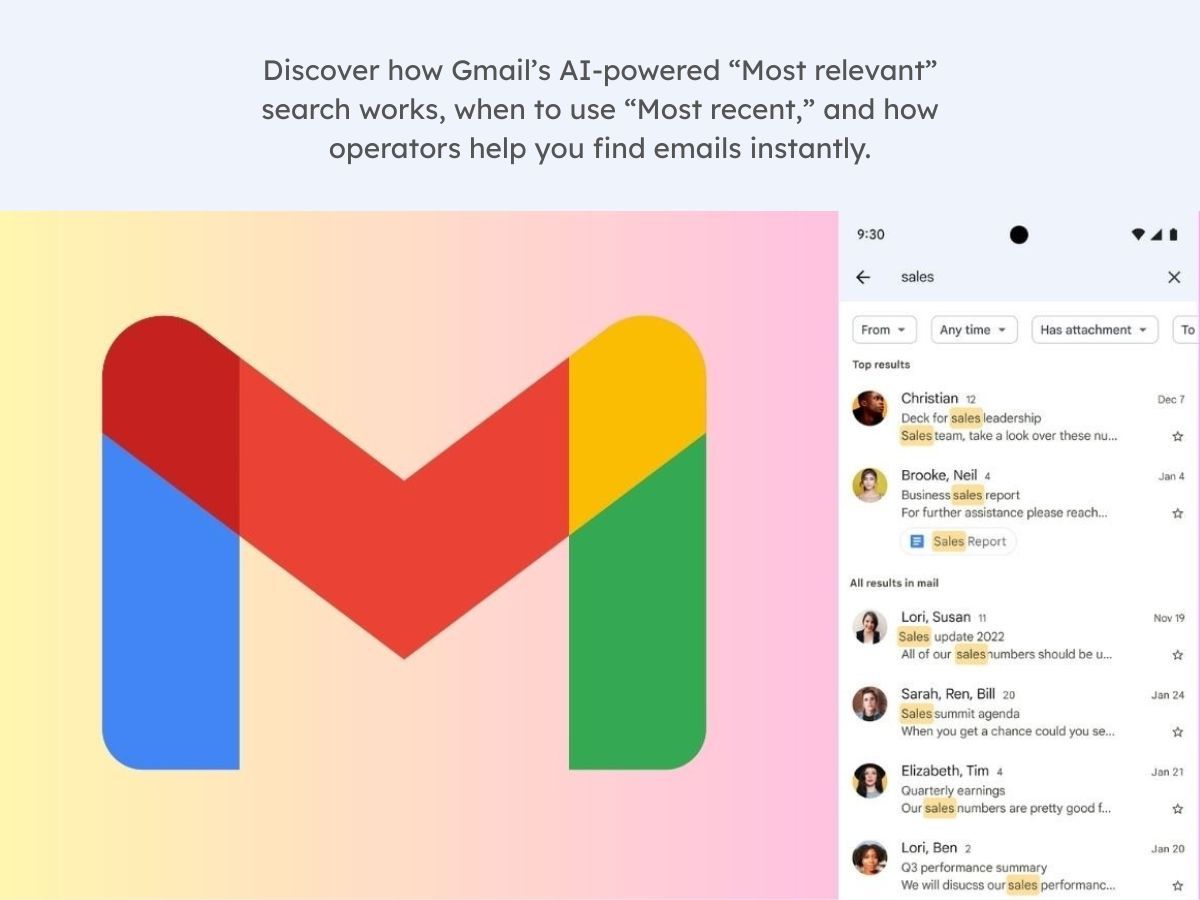
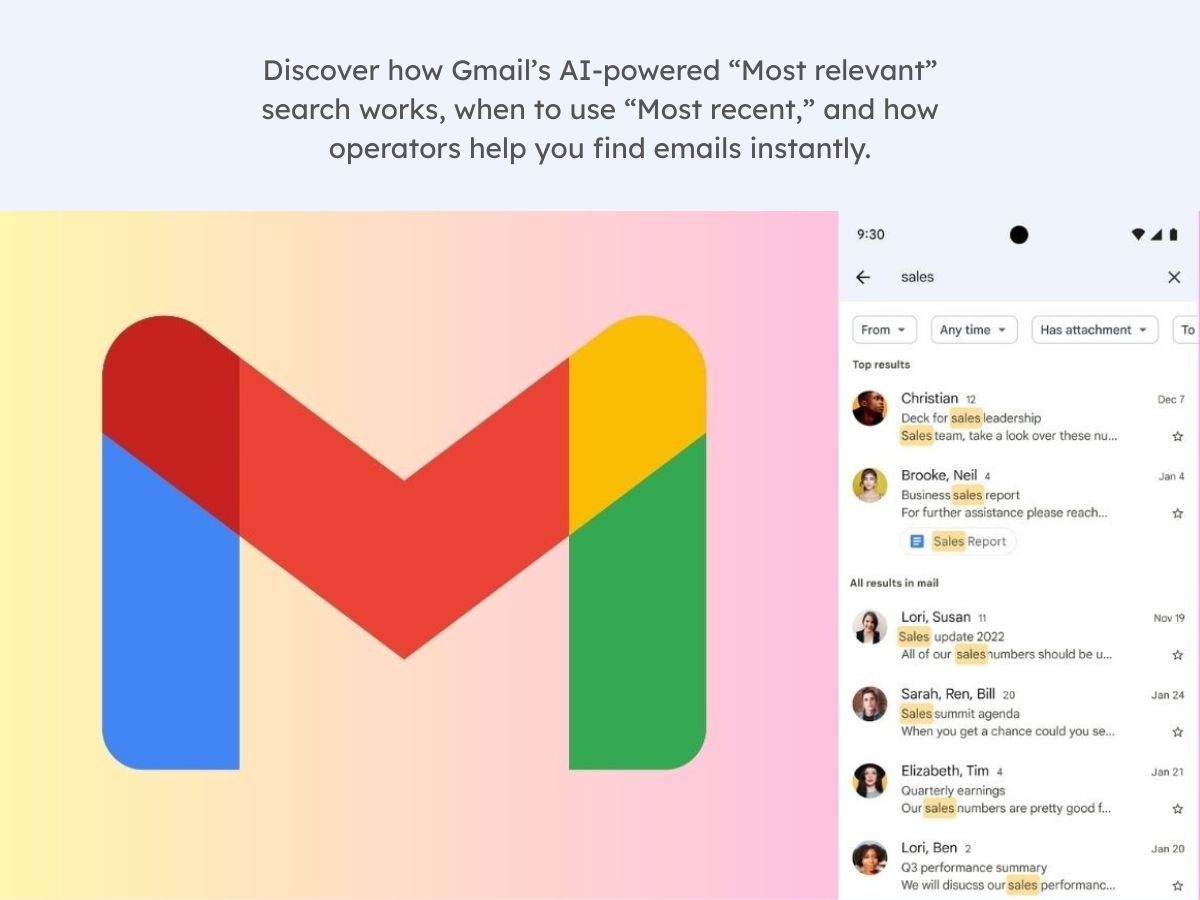
Finding one email in a crowded inbox shouldn’t feel like scrolling through thousands of messages. In 2025, Gmail introduced AI-powered “Most relevant” search results that surface the emails you’re most likely looking for based on recency, frequent contacts, and past interactions.
Here you’ll learn how Gmail’s AI search works, when to switch to “Most recent,” and how to combine search operators so the exact email you need appears in seconds.
What’s new Gmail search upgrade
On March 20, 2025, Google announced an AI-powered upgrade to Gmail search that surfaces “Most relevant” results for personal Google accounts on the web and in the Gmail app, while still letting you switch back to “Most recent” sorting when you prefer it.
Key takeaways Summary
- “Most relevant” ranks matching emails using signals like recency, frequent contacts, and the emails you click most.
- “Most recent” sorts matching emails in chronological order, which is useful when the newest reply matters.
- Search operators narrow what counts as a match (for example from:, after:/before:, filename:, category:, and in:anywhere).
- If it’s “missing,” widen scope: it may be archived or sitting in Spam/Trash.
- Archived mail doesn’t appear in inbox categories; find it under All Mail or with in:archive.
- Inbox categories depend on settings: they require the Default inbox type, and Google notes you can’t use that inbox type if you have more than 250,000 emails in your inbox.
Gmail AI search: why it matters
In practice, it means your first search doesn’t have to be perfect. If you remember the topic (or the sender) but not the exact words, “Most relevant” is designed to reduce the “scroll until you get lucky” part of finding a thread.
How Gmail’s AI search works
In this context, “AI search” isn’t a chatbot—it’s a smarter way to order the emails that already match what you typed.
- You enter a query. Start with what you remember and optionally add operators like from:, subject:, or has:attachment.
- Gmail collects matches. It gathers emails that fit your words plus any operators you used.
- “Most relevant” re-orders those matches. Gmail can consider signals like recency, frequent contacts, and which emails you click most to decide what to show first.
- You switch views when ordering matters more than relevance. “Most recent” is better when you need the newest reply or you’re tracking a timeline.
- You tighten the search if it’s still too broad. Combine operators (and category/label terms) until the right message is unavoidable.
A simple workflow
- Search with one strong clue (sender, subject, or attachment type).
- Start in “Most relevant.”
- If the top results look wrong (or you need the latest reply), switch to “Most recent.”
- Add one narrowing operator: date range, label/category, or in:anywhere to include Spam and Trash.
If you run the same search repeatedly (for example, “receipts from X”), Gmail notes you can use a search to set up a filter—so future messages are easier to handle automatically.
Gmail AI search examples (from quick to tricky)
The searches below use Gmail’s documented operators and the “Most relevant / Most recent” sorting control, so you can copy, paste, and tweak them.
Simple
Search for a keyword you remember (for example: reunion). If the results feel “off,” switch the sort to “Most recent” to see the newest matching emails first.
Realistic
You need a PDF invoice from a vendor sometime last summer:
from:billing@vendor.com has:attachment filename:pdf (invoice OR receipt) after:2025/06/01 before:2025/09/01
Then check the top few results in “Most relevant”—it may prioritize the thread you interacted with.
Edge case
You used an email alias and can’t remember who sent the confirmation—only the address it was delivered to:
deliveredto:yourname+alias@gmail.com subject:(verify OR confirmation) in:anywhere
This is a useful combo when you suspect the email landed outside your usual inbox view (like Spam or Trash) and you want to widen the search without losing precision.
Common misconceptions about Gmail AI search
- “Most relevant” means “newest.” It can consider recency, but it also weighs signals like frequent contacts and which emails you click most.
- AI sorting replaces operators. Operators narrow the search; AI sorting changes which matches you see first.
- If search doesn’t find it, the email is gone. It may be archived, or sitting in Spam/Trash—widen the scope before assuming it disappeared.
- Inbox tabs are folders that hide emails. Categories are an inbox view, and archived emails don’t appear in those categories.
- You need to remember exact words. A sender, date range, or attachment type can be a better “hook” than the perfect keyword.
- More keywords always improves results. Extra words can accidentally exclude the email you want; one operator is often safer than multiple vague keywords.
- Email organization is separate from search. Labels, categories, and filters create structure that makes searches faster and less stressful.
When to use “Most relevant” vs “Most recent”
Use “Most relevant” when…
- You remember the topic but not the date.
- You’re searching for a thread you’ve interacted with before.
- You need the “right email” more than you need a complete timeline.
Use “Most recent” (and/or operators) when…
- You need the newest reply (or you’re tracking what happened in order).
- Your query matches tons of newsletters—narrow by sender, category, label, dates, or attachments first.
- You must be sure you’re searching everywhere (for example, include Spam/Trash with in:anywhere).
Boundary condition: Search helps you find emails; it doesn’t reduce the number of low-value messages arriving. If your inbox is mostly subscriptions, consider unsubscribing or routing those messages elsewhere—dedicated tools like Leave Me Alone focus specifically on subscription cleanup.
Key terms (plus a mini operator cheat sheet)
“Most relevant” A Gmail search view that uses signals like recency, frequent contacts, and past clicks to decide what to show first.
“Most recent” A Gmail search view that sorts matching results in chronological order.
Search operators Special words/symbols you type into the search box (like from:, subject:, after:) to narrow results.
in:anywhere An operator that searches across Gmail, including Spam and Trash.
Inbox categories (tabs) Gmail’s Default inbox can automatically sort emails into tabs like Primary, Social, Promotions, Updates, and Forums to reduce clutter.
Archived email / All Mail Archived messages don’t appear in inbox categories; you can find them under the All Mail label (or by searching in:archive).
Operator cheat sheet
These operators and behaviors are documented by Gmail Help.
| Goal | Operator pattern | Example |
|---|---|---|
| Find messages from a sender | from: |
from:billing@vendor.com |
| Search a subject line | subject: |
subject:(verify OR confirmation) |
| Limit by date range | after: / before: |
after:2025/06/01 before:2025/09/01 |
| Only emails with attachments | has:attachment |
has:attachment |
| Only certain attachment types | filename: |
filename:pdf |
| Search within a category tab | category: |
category:promotions invoice |
| Search Spam and Trash too | in:anywhere |
in:anywhere subject:confirmation |
| Find archived emails | in:archive |
in:archive from:vendor.com |
| Find mail delivered to an address | deliveredto: |
deliveredto:yourname+alias@gmail.com |
What can change over time
- Rollout and account type. Google has said “Most relevant” results are rolling out for personal accounts and it plans to expand to business users in the future.
- Where the control lives. Depending on interface updates, the “Most relevant / Most recent” option may appear as a dropdown or toggle in the results view.
- Inbox category availability. Inbox categories require the Default inbox type, and Google notes you can’t use that inbox type if you have more than 250,000 emails in your inbox.
Checklist To verify on your account
- Run a search you do often (like a sender name).
- Look for the sort option and compare “Most relevant” vs. “Most recent.”
- If results are noisy, add one operator (for example: from: or has:attachment).
Product interfaces and rollouts change; if your screen looks different, Google’s help pages are the fastest place to confirm what’s currently supported.
Frequently Asked Questions
What’s the difference between “Most relevant” and “Most recent” in Gmail search?
“Most relevant” prioritizes the emails Gmail thinks you’re most likely looking for, while “Most recent” shows matching emails in chronological order.
Where do I find the “Most relevant / Most recent” option?
Run a search in Gmail, then look in the results view for a sorting control that lets you switch between “Most relevant” and “Most recent.”
Does Gmail’s AI search change what emails it searches?
It changes how matching results are shown first. If you need to narrow what’s included, add search operators like a sender, date range, label, or attachment filter.
What are the most useful Gmail search operators to learn first?
Good starters are: from:, subject:, after:/before:, has:attachment, filename:, label:, category:, and in:anywhere.
How do I find an email I archived?
Check the All Mail label, or try searching with in:archive plus a keyword, sender, or subject term.
How do I search only the Promotions (or Social) tab?
Use the category: operator (for example, category:promotions or category:social) followed by your keyword.
How do I search Spam and Trash too?
Add in:anywhere to search across Gmail, including Spam and Trash.
What if “Most relevant” keeps surfacing the wrong email?
Switch to “Most recent,” then narrow your search using one or two operators (sender, date range, attachment type, label, or category) so there are fewer “close” matches to choose from.
