

Written by email privacy specialists at Leave Me Alone. Updated for Gmail, Outlook, and iCloud in 2026.
You give your email to a store once, and suddenly the promos never stop. An email alias gives you control. Instead of sharing your real address everywhere, you create separate addresses that all route to your main inbox. If one gets spammed or leaked, you can shut it off without touching the rest of your email life.
What’s new
Why it matters: In July 2025, Google began rolling out a “Manage subscriptions” view in Gmail that helps people review subscription senders and unsubscribe from them in one place. That’s useful cleanup—but it happens after your address has already been shared. Email aliases shift control earlier (at sign-up) by letting you give each site its own address, so a leak or spam flood stays contained. They also make inbox management more mechanical: filter, mute, or shut off one alias without touching the rest of your inbox.
Key takeaways (choose the right kind of alias)
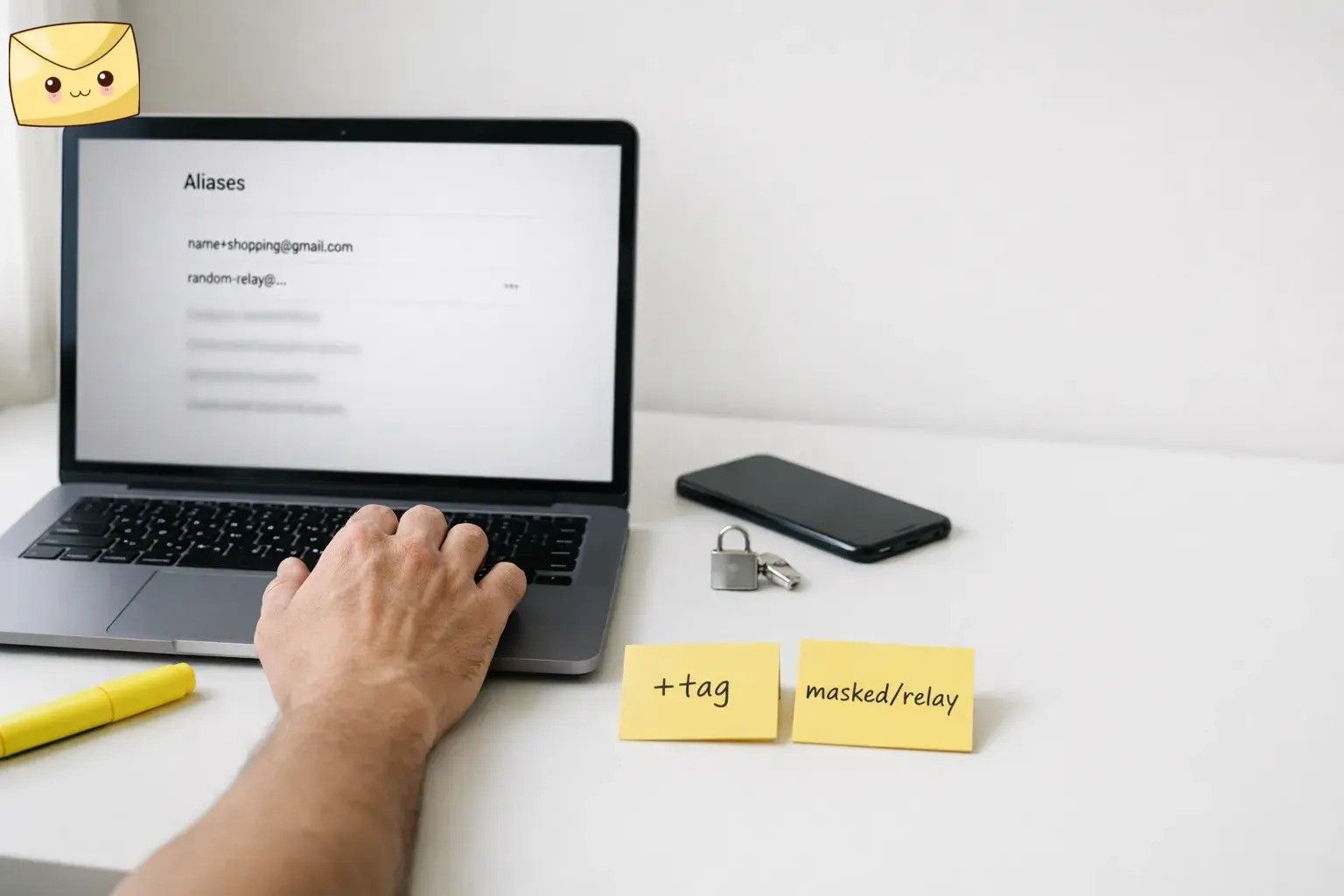
- For sorting: plus tags like name+shopping@gmail.com are easy to filter, but Gmail notes aliases aren’t private.
- For “same account, new address”: provider aliases (Outlook.com is a common example) add another address to one account.
- For privacy protection: masked/relay aliases (like Apple’s Hide My Email) generate random addresses that forward to you and can keep your personal email hidden when you reply.
- For unlimited per-site addresses: a custom-domain catch-all can accept mail sent to any address at your domain.
How email aliases work
The mental model
One inbox, many “front doors.” Each front door (alias) is a different way people can reach you; behind the scenes, you decide where messages go and whether that door stays open.
Step-by-step mechanism
- Pick your “real inbox.” This is the mailbox you actually check (Gmail, Outlook, iCloud, Fastmail, etc.).
- Create an alias that points to that inbox. This might be an extra address on the same account, a tagged variant of your address, a random relay address, or a domain-level catch-all.
- Use that alias at sign-up. Give different services different aliases (shopping, newsletters, apps, support, and so on).
- Incoming mail routes to you automatically. It lands in the same mailbox (true aliases) or gets forwarded through a relay that passes it along to your inbox.
- Reply behavior depends on the alias type. Some setups reply from your main address by default; relay-style aliases are designed to preserve the alias so your real address stays hidden.
- If one alias turns noisy, isolate it. Unsubscribe, create a filter, or disable that one alias—without changing your primary email everywhere.
Common email alias types (what you’re actually getting)
1) Account aliases (same mailbox)
Extra addresses attached to the same email account, sharing the same inbox; some providers also let you choose which alias you send from.
2) Plus addressing (“tags”)
A structured variant like name+shopping@gmail.com that still delivers to name@gmail.com, mainly useful for sorting and filtering.
3) Masked/relay aliases (random addresses)
A service generates a random address that forwards to you; you can often reply without exposing your personal address (the relay handles it).
4) Catch-all / wildcard aliases (your own domain)
A domain rule that accepts mail sent to any address at your custom domain and delivers it to one account, so you can invent addresses on the fly.
Important nuance
Not every “alias-looking” address is private. In Gmail, plus tags are best thought of as an organization tool first, privacy tool second—Google notes aliases aren’t private and can sometimes be visible to others. See our guide to blocking email trackers and read receipts.
Email alias setup options (pick one)
- If you want the simplest sorting: use Gmail plus tags (and filters) like name+news@gmail.com.
- If you want “same account, different address”: add an alias in your email provider (Outlook.com is a common example).
- If you want stronger privacy (random addresses): use a relay-style option like Apple’s Hide My Email (part of iCloud+).
- If you want unlimited, human-readable addresses: use a custom domain with a catch-all/wildcard alias.
- If you want aliases plus inbox workflows: Leave Me Alone’s Shielded Emails let you create private addresses and choose actions like rolling up, forwarding, or unsubscribing; replies can be sent without exposing your real email address.
Email alias examples
Example 1 (simple): Newsletter sign-up with a Gmail tag
- You sign up using alexis+newsletters@gmail.com.
- Mail still lands in your main inbox, but you can filter everything sent “to” that tag into a label or folder.
- If that list starts spamming you, you know exactly which sign-up created the problem.
This is the “organization-first” style of aliasing (great for filtering — organize emails in Gmail).
Example 2 (realistic): Shopping accounts without handing out your real address
- You create one masked address per store (e.g., “Store A,” “Store B,” “Delivery notifications”).
- Each store only ever sees its own alias, not your primary email.
- If one alias starts receiving unexpected marketing, you can shut off that alias (or route it away from your inbox) while keeping everything else unchanged.
Apple’s Hide My Email generates random addresses that forward to you and lets you read and respond while keeping your personal email private; Leave Me Alone’s Shielded Emails provide a similar “protect the real address” approach with workflow options.
Example 3 (edge case): Account recovery and two-factor codes
- You used an alias as the login email for an important account (airline, bank, government portal, etc.).
- Later, you disable that alias to stop spam—and then you can’t receive password resets or verification codes.
- Fix: before disabling any alias tied to a login, update the email address inside the service (and verify it) or keep that alias permanently active.
Email alias misconceptions (and quick corrections)
- Misconception: “An alias is a totally separate email account.”
In most setups, it’s the same account or a forwarding/relay route to one inbox—so you’re not managing multiple mailboxes unless you choose to. - Misconception: “Plus tags (like +shopping) are private.”
They’re great for sorting, but your underlying address is still right there, and Gmail notes aliases aren’t private and can sometimes be visible to others. - Misconception: “Aliases stop spam automatically.”
Aliases don’t stop anyone from sending email; they give you a controlled surface area so you can filter, unsubscribe, or disable one stream without collateral damage. - Misconception: “If I delete an alias, I’ve deleted my footprint.”
Deleting or disabling an alias mainly changes future email delivery; it doesn’t delete the account you created at a website, and it can break logins or recovery if you’re not careful. - Misconception: “I can always reply from whatever alias I used.”
It depends: account aliases may let you choose a “From” address, plus tags often reply from your base address, and relay-style aliases are designed to preserve your privacy when replying. - Misconception: “Dots create new Gmail addresses (john.smith vs johnsmith).”
For Gmail addresses that end in @gmail.com, dotted variants deliver to the same inbox (dots don’t change the destination). - Misconception: “Aliases make me anonymous online.”
They hide (or segment) your email address, not your payment details, cookies, device fingerprinting, shipping address, or account behavior.
When to use an email alias (and when not to)
Use an alias email when…
- You’re signing up for newsletters, promos, giveaways, webinars, or free resources.
- You’re trying a new app/service and don’t yet trust how it handles marketing and sharing.
- You want to identify which sign-up path produced the emails you’re now getting.
- You want a “kill switch” (disable one alias instead of changing your primary address everywhere).
- You’re creating roles like support@, bills@, or jobs@ without running extra inboxes (especially with a catch-all).
Don’t rely on an alias email when…
- Losing access would be costly (tax portals, banking, primary identity accounts) and you don’t have a rock-solid plan to keep that alias active long-term.
- You know you’ll need to email a human support team that struggles with “unusual” addresses (use a standard alias or a real address you can easily send from).
- You can’t commit to basic tracking (e.g., noting “which alias did I use?” in your password manager).
Clean boundary condition: If an account uses email for password resets, security alerts, or login codes, treat the alias as part of your authentication—not just a marketing shield.
Aliases + unsubscribing: prevention vs. cleanup
Aliases help prevent future inbox clutter by limiting where your real address spreads. Unsubscribing tools are for cleaning what’s already accumulated—Leave Me Alone, for example, is built to help you view mailing lists in one place and unsubscribe with a click.
General information only (not legal advice). For high-stakes accounts, follow your email provider’s guidance and your organization’s security policies.
Email alias glossary (key terms)
Email alias An additional address attached to an account; depending on the provider, it can route mail to the same inbox and may be usable for sign-in and sending.
Plus addressing / tag A pattern like name+tag@domain.com where the “tag” helps you sort mail; in Gmail, messages to tagged variants still arrive in the same inbox.
Masked email / relay address A randomly generated address that forwards to you, so the sender never sees your personal email address; some relays let you reply while keeping your real address hidden.
Catch-all / wildcard alias A custom-domain setup that can accept mail to any address at your domain and deliver it to one account, enabling “invent-an-address-per-site” workflows.
Shielded Email (Leave Me Alone) A private address you can share instead of your real email; you can choose actions for incoming mail (like rolling up, forwarding, or unsubscribing) and replies can be sent without exposing your actual address.
Hide My Email (Apple) An iCloud+ feature that generates unique, random addresses that forward to your personal inbox; you can read and respond while your personal email stays private.
If you’re setting up Apple’s Hide My Email outside of “Sign in with Apple,” Apple documents creating and managing these addresses on iCloud.com as part of iCloud+.
Frequently Asked Questions
Are email aliases the same as disposable/burner emails?
Sometimes. “Disposable” usually implies short-lived. An alias can be disposable, but many aliases are meant to be long-term and tied to specific services (so you can keep receiving receipts, resets, and alerts).
What’s the difference between a plus tag and a masked email address?
A plus tag is a predictable variation of your existing address (good for sorting). A masked address is typically random and designed to hide your real address from the sender (better for privacy).
Can I reply to emails sent to an alias?
It depends on the alias type and your provider. Some relays preserve the alias automatically when you reply; other setups reply from your main address unless you configure a different “From” address.
Will websites accept email addresses with a plus sign?
Many do, but some sign-up forms reject them. If that happens, use a different alias method (provider alias, masked/relay alias, or a custom-domain address).
Is using dots in Gmail a good privacy trick?
Not really. It’s mainly useful if you want to see which “dotted version” a sender used, but it doesn’t meaningfully hide your underlying address.
Should I use aliases for banking and government accounts?
Only if you can keep that alias stable long-term and you’re confident you won’t disable it later. If an alias breaks, account recovery can become painful.
What if I forget which alias I used for a service?
Store it where you store the password (password manager notes are perfect), or standardize a naming pattern (like service@yourdomain.com or name+service@).
What’s a safe “minimum setup” if I’m new to this?
Start with plus tags for newsletters (organization), and use masked/relay aliases for sign-ups you’re unsure about (privacy). Add custom domains and catch-all setups only if you want deeper control.
Bottom line
Start simple: plus tags for filtering, relay-style aliases for privacy, and a catch-all only if you want to invent unlimited addresses. If your problem is existing mailing-list clutter, use unsubscribe apps for cleanup and aliases for prevention.
