

Written by email productivity experts at Leave Me Alone. Updated for Gmail search features and inbox management workflows in 2026.
Can’t find an email you archived in Gmail? The good news is it’s not deleted—it’s just removed from your Inbox. With the right search tricks or by using All Mail, you can find archived emails in seconds.
This guide shows the fastest ways to locate archived emails in Gmail, even if you only remember a sender, keyword, or rough date.
Where Do Archived Emails Go in Gmail?
Archived emails are not deleted—they are stored in “All Mail” and can be found using Gmail search.
What’s new
Google says Gmail search is rolling out a smarter, AI-powered view that surfaces “most relevant” results and (once it’s available to you) lets you switch between “Most relevant” and “Most recent.” What it means for you: if your archived message isn’t showing up where you expect, switching to “Most recent” can put older emails back near the top while you search.
TL;DR
- Two reliable starting points for Gmail retrieval: open All Mail (to browse) or search with in:archive (to show archived-only results)
- Narrow fast with a time window: after: / before: (or older_than: / newer_than:).
- If there was a file, add has:attachment and (if you know the type) filename: (for example filename:pdf).
- If you suspect it’s in Spam or Trash, use in:anywhere to search “everywhere.”
- Found it? Use Move to Inbox to unarchive it.
- If the thread keeps returning to Inbox, someone likely replied—re-archive it once you’ve dealt with the new message.
- Optional cleanup: Leave Me Alone offers 10 unsubscribes for free (no card) if subscription clutter is the reason you archive so much.
Before you start
- Prerequisites: Access to the Gmail account where the email lived (personal or work/school), plus at least one clue (sender, recipient, subject word, attachment type, or date range).
- Tools / ingredients: Gmail in a web browser (usually quickest), or the official Gmail app on iPhone/Android.
- Time: Often 5–10 minutes; if you need to try a few searches, plan for up to ~20 minutes.
- Cost: $0 to search and retrieve. Optional inbox cleanup: Leave Me Alone offers 10 unsubscribes for free (no card) if subscription clutter is the reason you archive so much.
- Safety notes: If you’re on a shared computer, use a private window and sign out when you’re done. While searching, avoid bulk-deleting anything unless you’re 100% sure you won’t need it later.
- What can change: Gmail search features roll out gradually and may differ between personal accounts and Google Workspace accounts.
Step-by-step: how to find archived emails in Gmail
Confirm you’re searching the right Gmail account.
Open Gmail and check the address shown under your profile icon (top-right). If you have multiple accounts, open the correct one in its own tab.
Check: You can see the exact email address you want to search.
Open All Mail to confirm the message is truly archived (not deleted).
In Gmail on the web, use the left sidebar and click More → All Mail. Archived emails live under the “All mail” label (they don’t disappear; they just stop showing in Inbox).
Check: The left sidebar highlight (or the page heading) shows All Mail.
Run an “archived only” search first.
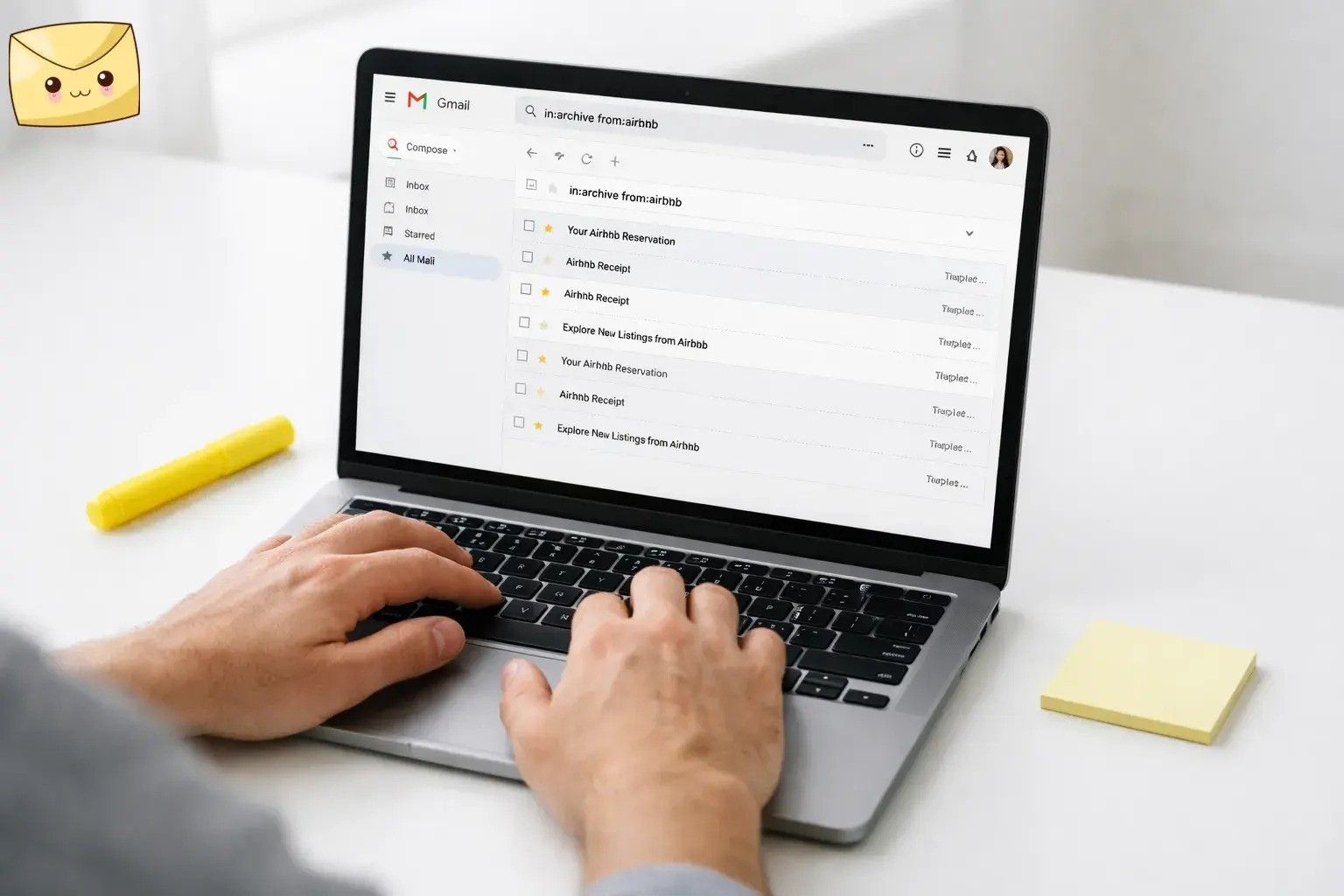
Click the search bar and type in:archive plus one clue you remember (sender, subject word, exact phrase, etc.).
in:archive from:airbnbin:archive subject:invoicein:archive "tracking number"
Check: Results load and the search box begins with in:archive.
Lock in the time window (this is usually the fastest win).
Add a date range using after: and before: (YYYY/MM/DD works well), or use older_than:/newer_than: when you only know “about a year ago.”
in:archive after:2025/11/01 before:2025/12/01 "lease"in:archive older_than:1y "resume"
Check: The result count drops noticeably (or the dates shown in results match your window).
If there was a file, search for the attachment directly.
Add has:attachment and (if you know the type) filename:
in:archive has:attachment from:hrin:archive filename:pdf "benefits"
Check: You see results with a paperclip/attachment indicator.
If it was a newsletter or list email, use the mailing list filter.
Add list: (helpful when the “From” name changes but the list stays the same).
in:archive list:news@company.comin:archive list:updates@service.com "password reset"
Check: Most results are clearly from the same mailing list.
If results look “out of order,” switch to Most recent (when available).
After searching, look near the top of results for a toggle or dropdown that says Most relevant / Most recent, and select Most recent.
Check: The label changes to Most recent, and older emails move higher in the list.
If you suspect it’s in Spam or Trash, expand the search to “everywhere.”
Run the same keyword search with in:anywhere (this includes Spam and Trash).
in:anywhere "wire transfer"in:anywhere from:bank "statement"
Check: You see results that include Spam/Trash items (if any exist).
When you find the email, move it back to Inbox (unarchive it).
Select the message and click Move to Inbox (web) or open the message and choose Move to Inbox (mobile).
Check: The message now appears in your Inbox.
If it keeps popping back into Inbox, it’s usually because someone replied.
Gmail can return an archived thread to your Inbox after a reply. Re-archive it, or decide whether you want to keep it in Inbox until the conversation is done.
Check: After re-archiving, the thread stays out of Inbox until a new reply arrives.
Optional: reduce the “archive pile” that hides the stuff you care about.
If your All Mail is massive because of newsletters and promos, unsubscribe from the ones you don’t read so you’re not forced to archive aggressively. (If you want a shortcut, Leave Me Alone offers 10 unsubscribes for free.)
Optional: Try Leave Me Alone here: Leave Me Alone pricing
Check: Your daily inbox volume drops, and future searches have fewer false hits.
Copy/paste: Gmail searches for archived messages
Use these as templates (swap in your sender, keyword, or dates). You can combine operators to narrow down results.
Search templates table
| What you’re trying to find | Search to paste |
|---|---|
| Archived-only results | in:archive |
| Archived email from a sender | in:archive from:airbnb |
| Archived email with an exact phrase | in:archive "tracking number" |
| Archived email in a date range | in:archive after:2025/11/01 before:2025/12/01 "lease" |
| Archived email with a file attached | in:archive has:attachment filename:pdf |
| Include Spam + Trash in the search | in:anywhere "wire transfer" |
| Archived receipts (when you don’t remember the sender) | in:archive category:purchases |
| Archived emails with no labels | in:archive has:nouserlabels |
Why this works
In Gmail, “Archive” mainly means “remove it from Inbox,” not “put it in a separate hidden vault.” Once you combine that with Gmail’s search operators (like in:archive, date filters, and attachment filters), you stop scrolling and start narrowing—fast.
Troubleshooting
| Symptom | Likely cause | Fix |
|---|---|---|
| “I archived it and now it’s gone.” | It’s not in Inbox anymore, so you’re only checking the Inbox view. | Open All Mail and/or search with in:archive. |
| I don’t see All Mail in the left menu. | The menu is collapsed, or you’re not scrolling far enough. | On web, click More in the left sidebar. On mobile, open the menu and scroll down. If you still can’t find it, skip browsing and use in:archive search. |
| in:archive shows zero results. | The email may not be archived (still in Inbox), or it may be deleted, or your query is too specific. | Remove in:archive and search the keyword alone. If you still get nothing, try in:anywhere + a broader keyword (or search by sender). |
| Search shows a lot of “wrong” emails at the top. | Results may be sorted by relevance in your account/app. | After searching, switch to Most recent (when the toggle appears), then tighten your query with from:, subject:, and a date window. |
| The thread keeps coming back to Inbox. | A reply arrived (or you got added back to the thread), which can re-surface it. | Re-archive it after the reply, or keep it in Inbox until the conversation is finished. |
| My email app (Apple Mail/Outlook) has an “Archive” folder, but Gmail doesn’t match it. | Third-party clients sometimes map Gmail labels in confusing ways. | Use Gmail on the web to search and retrieve first. Once you’ve found it, move it to Inbox or label it so it’s easier to spot across apps. |
| I’m looking for a PDF, but attachment searches aren’t finding it. | The message might not have a PDF (could be a link), or you’re filtering too tightly. | Try has:attachment without filename:. If you know who sent it, use from: and a date range. |
| Work/school Gmail looks different from the steps here. | Google Workspace accounts can have different rollouts and admin policies. | Rely on operators (in:archive, after:/before:, from:) and ask your admin if retention rules could be affecting older mail. |
Variations
Variation 1: Find “archived receipts” fast
in:archive category:purchasesin:archive category:purchases after:2025/01/01 before:2025/02/01
Use this when you don’t remember the sender—just that it was a purchase confirmation.
Variation 2: Find archived emails with no labels (the “true archive pile”)
in:archive has:nouserlabels
Helpful when you archive without labeling and later can’t remember where you filed it.
Variation 3: Find big archived emails (attachments clogging storage)
in:archive larger:10Min:archive has:attachment larger:10M
Great for locating large PDFs, videos, or slide decks you can download and store elsewhere.
Variation 4: Find archived emails from one of two people
in:archive (from:amy@example.com OR from:david@example.com) "schedule"
Use OR to search multiple senders at once.
Need more operators? Google’s guide lists the full set you can use and combine.
Email management: make archived mail easier to retrieve next time
Make it searchable
- Label first, archive second. If you archive without labeling, you’re relying on memory later. A simple label like Receipts or Contracts makes retrieval faster.
- Use repeatable searches. If you often hunt for the same type of message (like receipts or invoices), keep a working search template you can paste and tweak next time.
Back up critical documents
- Keep important attachments outside your inbox. Download contracts or tax docs to a secure location you control (encrypted drive, secure storage, etc.).
When you need to retrieve a lot
- Use a search query as a “batch list.” Example: in:archive from:vendor.com after:2025/01/01 before:2025/03/01. Then bulk-select results and move them to Inbox or apply a label.
Quick checklist
- Confirm you’re in the right Gmail account (top-right profile email).
- Open All Mail (web: left sidebar → More → All Mail).
- Search archived only: in:archive + a clue (from:, subject:, or a quoted phrase).
- Narrow the time window: after: / before: (or older_than: / newer_than:).
- If there’s a file: add has:attachment and filename:pdf (or another type).
- If results look wrong: switch to Most recent (if the toggle appears).
- Still missing? Search everywhere: in:anywhere + keywords.
- Found it: Move to Inbox and label/star it for next time.
- Reduce future clutter: unsubscribe from low-value senders (optional: Leave Me Alone free 10 unsubscribes).
Frequently Asked Questions
Where do archived emails go in Gmail?
They stop showing in your Inbox, but they’re still in your account—usually easiest to find under All Mail or by searching with in:archive.
Is there an “Archive folder” in Gmail?
Not as a separate folder in the way some email apps show it. In Gmail, archiving removes the message from Inbox, and you retrieve it from All Mail or by searching.
What’s the fastest Gmail search to show only archived messages?
Use in:archive, then add one clue (sender, subject word, phrase in quotes, or a date range).
Can I search archived emails on the Gmail app (iPhone/Android)?
Yes. Tap the search bar and try the same query (for example, in:archive from:…). If you prefer browsing, open the app’s menu and look for All mail.
Why does an archived email come back into my Inbox?
If the conversation gets a new reply, the thread can reappear in Inbox. Re-archive it once you’ve dealt with the new message.
Does Gmail search include Spam and Trash?
By default, not always. If you want to include Spam and Trash in a search, use in:anywhere and then add your keywords.
Why aren’t my search results in date order anymore?
Some accounts see results ordered by “Most relevant.” If you have the toggle, switch to “Most recent” after you search to make old emails easier to spot.
How do I stop needing to archive so much?
Unsubscribe from senders you don’t read, route recurring mail into labels, and keep your Inbox for messages that require action.
